Overview
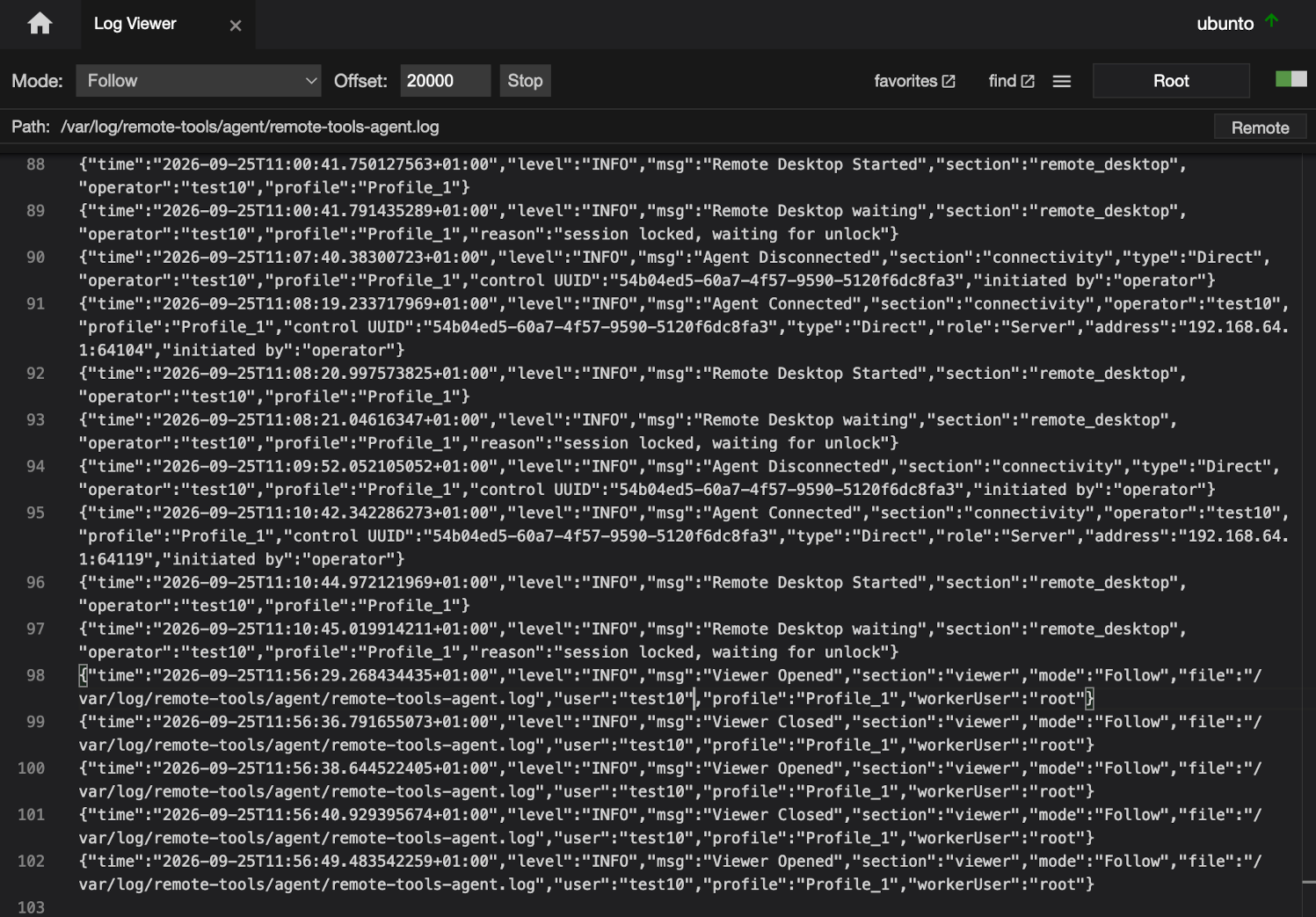
The Log Viewer streams the contents of a text file from the agent to the control, so you can view or search it. There are two ways of opening a file: Normal, which streams the complete file, or Follow, which reads the end of the file - the number of characters set by Offset - and then streams anything added to it.
Opening a file
There are two ways to open a file:
| From the File Manager | Right-click a file and select Open in viewer - see File Manager |
| From the Function menu | Right-click the agent in the Agents list, select Log Viewer, then choose a previously saved favorites |
Toolbar
| Mode | Follow or Normal - see Modes |
| Offset | How many characters from the end of the file to show when it opens in Follow mode. Default: 20,000 |
| Open, Stop | Open reads the file. While it is being followed the button changes to Stop, which closes the file and stops following it |
| favorites | Opens your saved favorites - see Favorites |
| find | Search the text - see Search |
| Menu (≡) | Turns word wrap on or off |
| Account and slider | The account the file is read as on the agent, and the elevation slider - see Reading protected files |
The path bar shows the details of the open file.
Modes
| Follow | The default. Shows the end of the file - the number of characters set by Offset - then adds anything new written to the file as it arrives. |
| Normal | Reads and shows the whole file once |
⚠️ Normal mode transfers the whole file, so opening a very large file this way can be slow. Use Follow mode to see just the end of it.
A file being followed in a view you have switched away from keeps being read. Only the most recent text is kept while it is out of sight, so a busy log won't use more and more memory.
Search
- Click find
- Type the text to look for
- The number of matches updates as you type, and each match is highlighted
Favorites
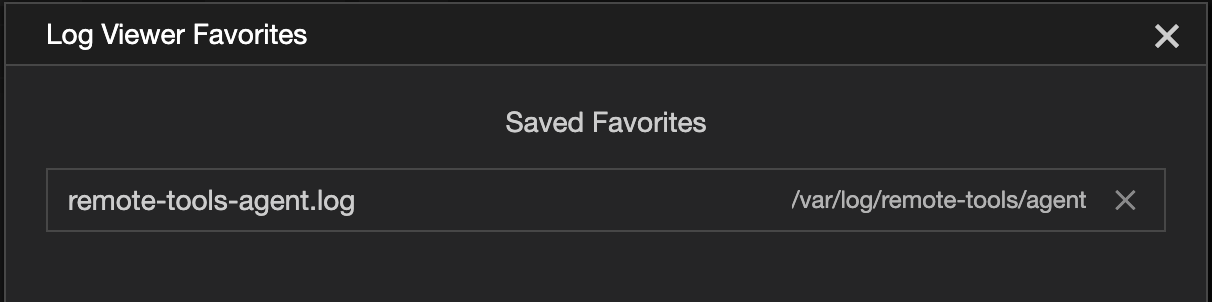
Favorites allow the details of often opened files to be saved locally at the agent so its easy to re-open them when required.
- Add, to add a favorite open the file, then right-click the path in the path bar and select Add to favorites
- Open to open a favotite click favorites from navigation bar and click on an item in the list
- Remove to remove a favorite click favorites, click the x on its row and confirm
Reading protected files
Files on an agent are read as the account shown beside the elevation slider - usually the logged in user. Many system logs can only be read by root or System. If a file can't be opened, toggle the slider on and open it again. See Privilege Elevation.
Local Log Viewer
ProfessionalThe Local Log Viewer reads text files on the control itself rather than on an agent. It works in the same way as the agent version described above - the same modes, Offset, find, word wrap and favorites dialog.
To open it, select Log Viewer from the Local menu. It opens in a window of its own, titled Local Log Viewer, and you choose the file from your favorites.
It differs from the agent version in three ways:
- Files are read as your own account on this machine, so there is no account label or elevation slider
- Its favorites are kept separately from the favorites used on agents
- It needs only Allow Viewer in your operator profile - no agent settings are involved
Permissions
📌 The options available to you depend on the agent's settings and your operator profile.
| Permission | Set in | Allows |
|---|---|---|
| Log Viewer | Agent settings | Using the Log Viewer on this agent |
| Allow Viewer | Operator profile | Opening the Log Viewer, on an agent or on the control |
| Add/Remove Favorites | Operator profile | Adding and removing favorites |
| Allow Privilege Elevation | Operator profile | Toggling the elevation slider on - see Privilege Elevation |
See Configuration Options for all the settings.