Overview
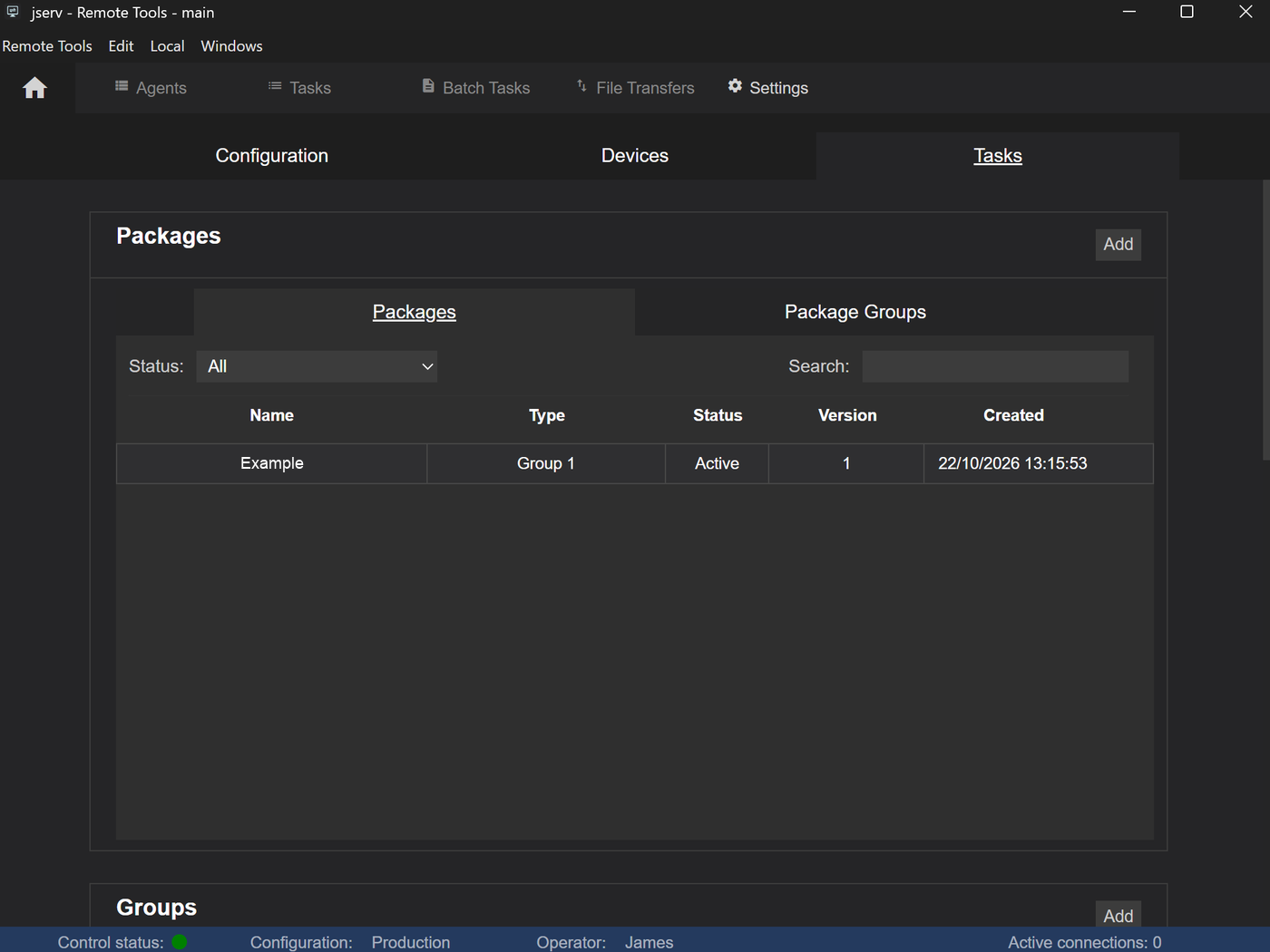
The Tasks tab manages the settings shared by all tasks - packages, task groups and runtimes.
Open it by selecting Settings from the Home menu and clicking the Tasks tab. See Tasks for creating the tasks themselves.
Packages
Each package is a .zip file that is used by a task's Package action. When a package is added, the .zip file is copied into the system.
The packages section has two tabs.
Packages
This is where the packages are added and managed.
Adding a package
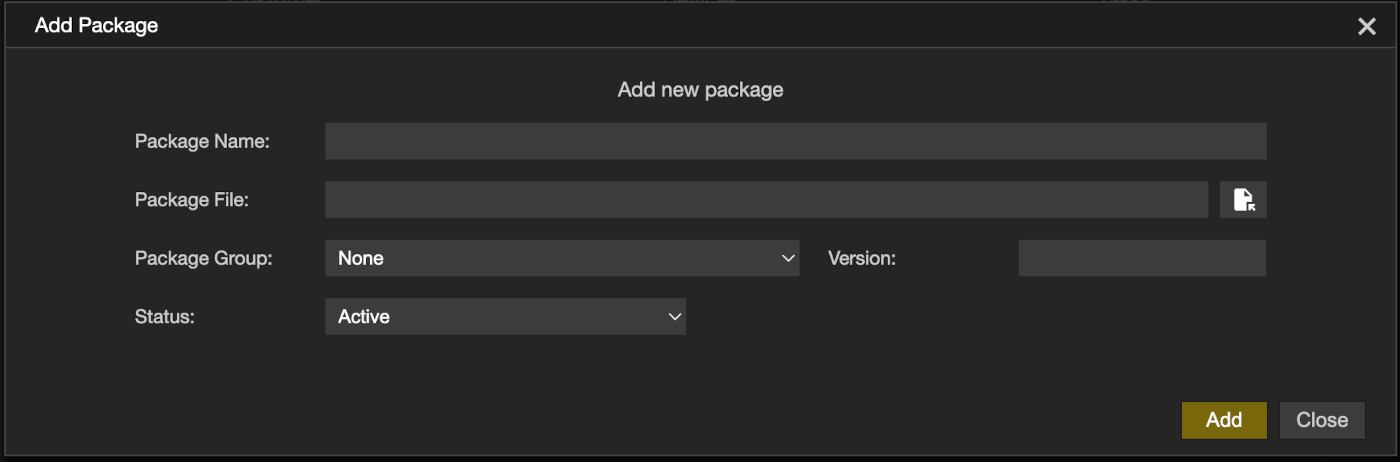
- Click Add
- Fill in the details:
| Package Name | The name shown when choosing a package |
| Package File | The .zip file |
| Package Group | The group it belongs to |
| Version | A free-text version label |
| Status | Only Active packages are offered to tasks. Inactive, Staged and Removed keep a package on record without offering it |
Click Add to save it.
Changing and removing packages
Right-click a package and select View/Modify to see or change its details, including its status and its history, or Remove to remove it. Use the Status filter and Search to find a package.
Package Groups
Package groups organise packages. A task's Package action is set to a package group, and when the task runs, the operator chooses which package from that group to use.
Enter a Name and Description and click Add to create a group. Right-click a group and select Remove to remove it.
Task Groups
Shown as Groups on the tab. Task groups are designed to help organise tasks when there are many of them. - see Creating a task.
- Add - click Add, enter the group name and click Ok
- Remove - right-click the group, select Remove and click Yes
Runtimes
A runtime is an interpreter already installed on the agent that runs a Script action - for example Bash or PowerShell. Common runtimes are included for each operating system, and more can be added.
Each runtime works on one operating system, so there are separate entries for the same language on Linux, Mac and Windows where the details differ.
Adding a runtime
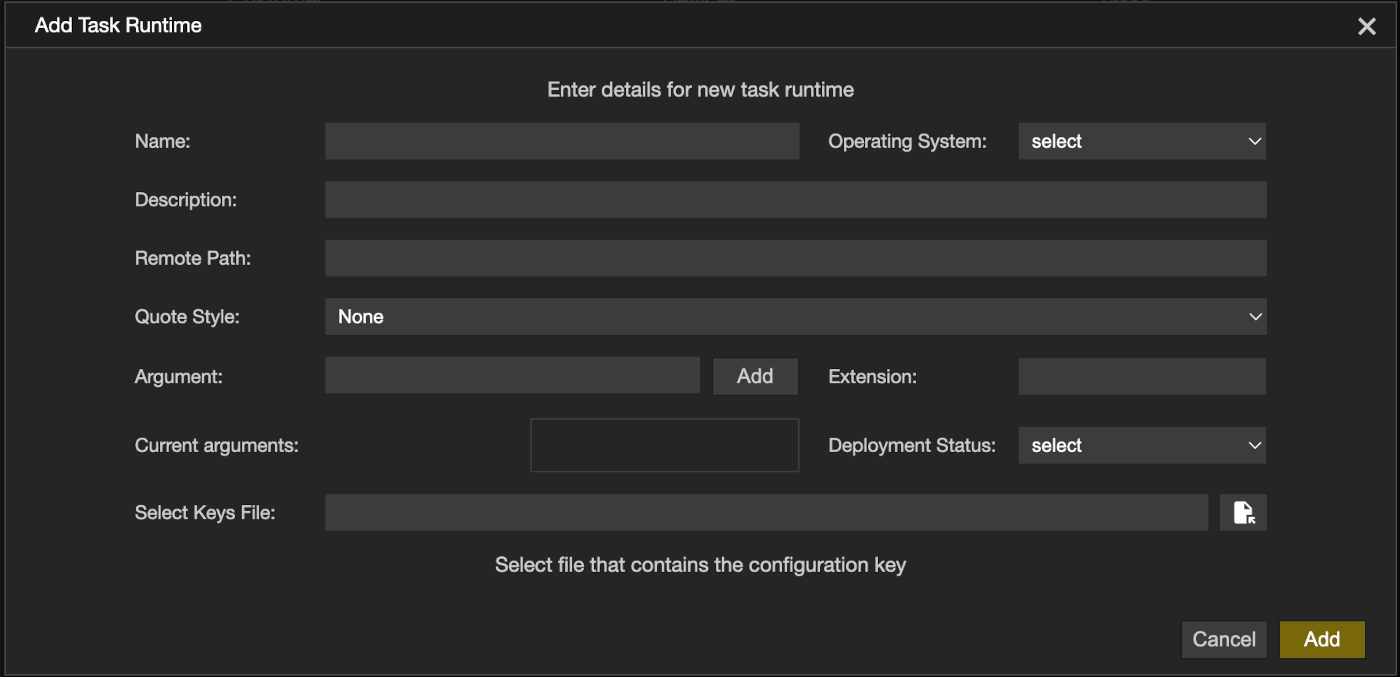
- Click Add
- Fill in the details:
| Name | The name shown when choosing a runtime |
| Operating System | Linux, Windows or Mac |
| Description | Optional notes |
| Remote Path | The interpreter's path on the agent |
| Quote Style | None, or Wrap with double quotes around the script path |
| Argument | Arguments passed to the interpreter, added one at a time |
| Extension | The script file extension this runtime is used for |
| Deployment Status | Production can be used, Test is for testing, and Disabled can't be used |
| Select Keys File | The configuration's keys file. Runtimes are signed, so changing them needs the configuration key |
Click Add to save it.
Changing and removing runtimes
- Change - right-click the runtime, select View/Modify, toggle the slider at the top right on, make the changes and click Update
- Remove - right-click the runtime, select Remove, select the keys file and click Remove
Saved Work Items
Number of saved work items shows how many task results are stored on this control - see Results.
Permissions
📌 Adding, changing or removing a runtime needs the configuration's keys file. The rest of this tab is available to every operator.