Overview
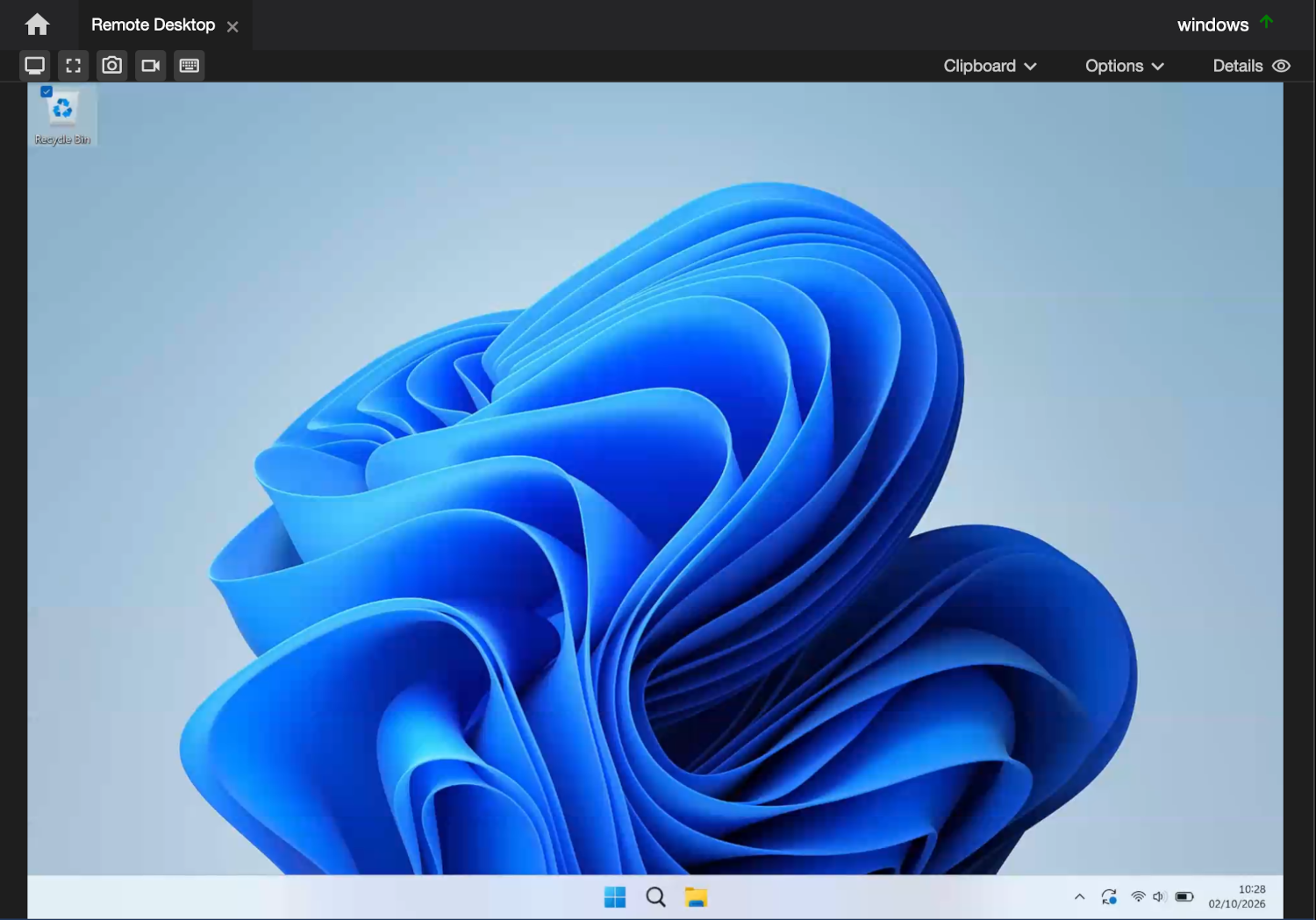
The Remote Desktop function lets you view and control the agent's screen or screens:
- Supports the Windows, macOS and Linux operating systems
- Remote screens are sent as Video (H.264) when possible, with a fallback to sending tiled images if H.264 isn't supported
- Supports a wide variety of hardware, including the Raspberry Pi
- Multiple monitor support lets you view all screens or switch between them
- Clipboard support allows you to transfer text back and forth between the agent and the control
- Snapshots and recordings of the session are saved on your own machine
Platform Permissions
- macOS - the agent needs the Screen Recording permission to show the screen and Accessibility to control it. Both are granted in System Settings, Privacy & Security
- Linux (Wayland) - the desktop asks the person at the machine to allow screen sharing the first time. Once allowed, later sessions start without asking
- Windows and Linux (X11) - no extra permissions are needed
Toolbar

| Fit remote screen | ProfessionalChanges the resolution of the screen you are viewing so it fits the remote desktop window (this will change the monitor resolution at the device) - see Permissions for details of how this is controlled |
| Full screen | Switches the remote desktop window to full screen |
| Snapshot | Saves an image of the screen(s) that are being viewed |
| Send keys | Sends operating system specific key combinations |
| Clipboard | Moves clipboard text between the control and agent - see Clipboard |
| Options | Screen transmission settings - see Options |
| Details | Shows session details (bandwidth, latency, framerate, etc.) |
Options
Changes take effect straight away, and are kept if you switch to another view and come back.
| Screen | Allows the operator to select which screen is shown, if more than one is present (default is to show all) |
| Framerate | Allows the operator to change the framerate to reduce bandwidth |
| Colour | Allows the operator to change the colour depth to reduce bandwidth |
| Scale | Auto (fit) sizes the picture to the window; 100%, 75%, 50% and 25% send it at a fixed size. Default: Auto |
| Mode |
|
| Quality | Sets the maximum quality of what gets sent - a lower setting uses less bandwidth |
| Adaptive | Automatically reduces the quality below the Quality setting when the connection cannot keep up |
| Cmd as Ctrl / Ctrl as Cmd | Swaps the two modifier keys, so the shortcuts you are used to reach the remote computer's equivalent. Only appears between a Mac and a PC |
Details
This is a movable panel that overlays the screen image and shows detailed information about the session:
| Codec | JPEG, or H.264 and whether the remote computer is encoding it in hardware or software |
| Bandwidth | Current bandwidth |
| Latency | Round-trip time to the agent |
| Adaptive | How much quality has been reduced (if necessary) |
| Framerate | Frames arriving per second / the rate set |
| Native | The remote screen's own resolution |
| Sending | The size it is being sent at |
| Scale | How the remote desktop image is scaled |
The rest - data transferred, average frame size, tiles per frame, queue depth, decode drops, sequence gaps, keyframe requests, screens and session duration - are there for diagnosing a session that is not behaving, and are worth quoting if you report a problem.
Clipboard
Text can be moved between your clipboard and the agent's. Nothing is copied automatically - a clipboard often holds passwords, so it only moves when you ask.
- Send clipboard to remote - puts your clipboard's text on the agent's clipboard
- Get clipboard from remote - puts the agent's clipboard text on yours
Only text is supported.
Locked screen and logging in
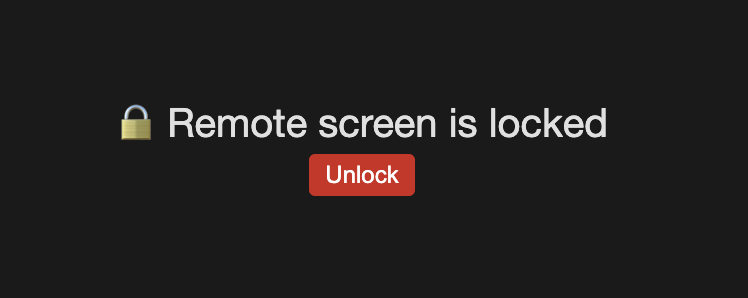
When the agent's screen is locked, the picture is covered and an Unlock button is shown. When nobody is logged in, the session says so, and on Linux offers a Login button that asks for a username and password. Both buttons need User Control.
Permissions
📌 The options available to you depend on the agent's settings and your operator profile.
| Permission | Set in | Allows |
|---|---|---|
| Remote Desktop | Agent settings | Using Remote Desktop on this agent |
| Allow Remote Desktop | Operator profile | Opening Remote Desktop |
| Fit Remote Screen | Agent settings | The Fit remote screen button. The agent has the last word on it, as it changes that machine's own display |
| User Control | Operator profile | The Unlock and Login buttons |
See Configuration Options for all the settings.