Overview
ProfessionalBatches require a Professional subscription.
A batch runs an existing task across many agents simultaneously, targeted by filters or an agent list. It can run on demand, once at a set time, or on a schedule - daily, weekly, monthly or at a set interval.
Batches make their own connections to the agents, separate from any you have open, so they don't interrupt your other work. You can carry on using the agents while they run. Batches can also keep running when the Remote Tools window is closed (if the control is set to run in the background - see Settings - Configuration).
Options let you customise how each batch runs, such as how many agents it runs on at the same time and how often it retries agents that can't be reached.
Navigation
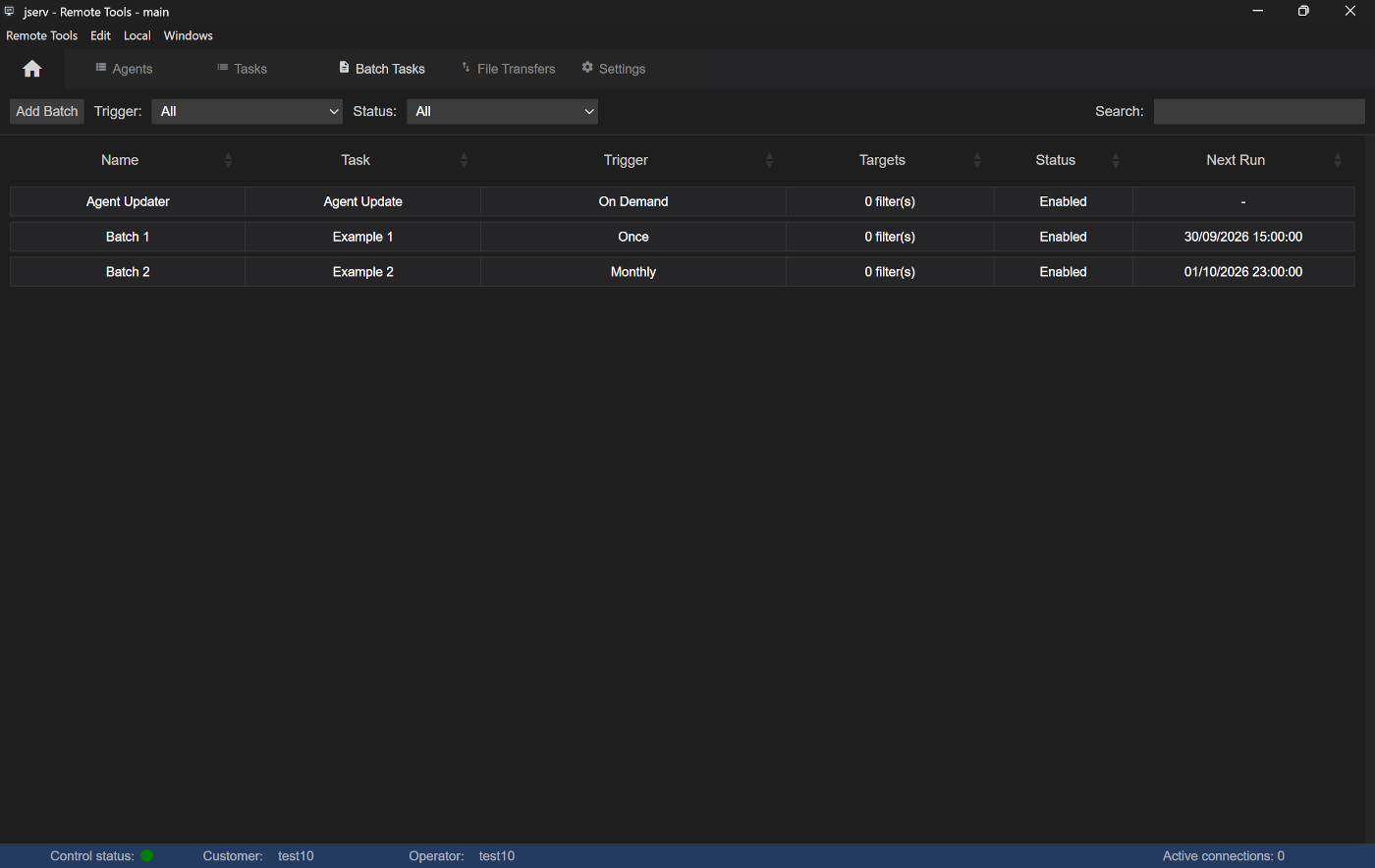
The Batch Tasks view is opened from the Home menu - see Getting Around.
Toolbar
| Add Batch | Create a batch - see Creating a batch |
| Trigger | Show only batches that match the trigger |
| Status | Show only batches that match the status |
| Search | Search for a batch |
The batch table
| Name | The batch's name |
| Task | Name of the task the batch will run |
| Trigger | When it runs - On Demand, Once, Daily, Weekly, Monthly or Interval |
| Targets | How many agents or filters it is aimed at |
| Status | Enabled, Disabled, Running or Finished for a Once batch that has run |
| Next Run | When a scheduled batch will next run |
Double-click a batch to see its results - see Results.
Right-click menu
| Run | Start an On Demand batch now |
| View/Modify | View or change the batch. Not while it is running |
| Remove | Delete the batch, after confirming. Not while it is running |
Creating a batch
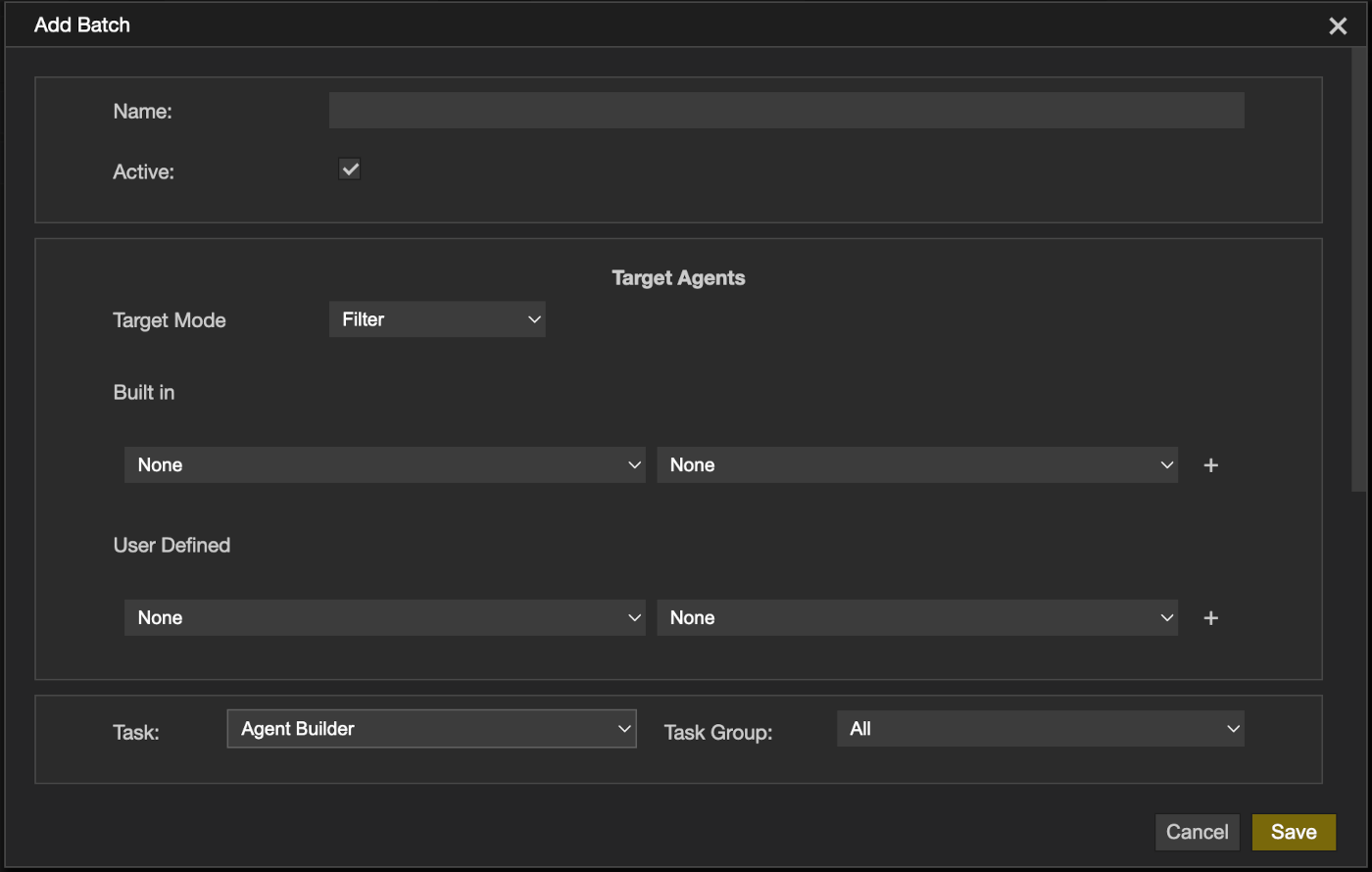
Click Add Batch in the toolbar to open the Add Batch dialog. It is split into sections, described below in the order they appear.
Name
Give the batch a Name. Clear Active to keep the batch without running it.
Target Agents
Choose which agents the batch runs on with Target Mode:
| Filter | Every agent matching the chosen filters - operating system, connection type or user-defined values. Offline agents that connect later and match are included automatically |
| Agent List | Select from the list of agents currently connected to the gateway |
| Upload List | The agents in a file saved from the Agent Lists dialog in Settings - Configuration - useful for large or reused sets of agents |
Task
Choose the task to run - the Task Group selector can be used to narrow the list. When targeting by Filter, tasks that can't run on those agents are hidden.
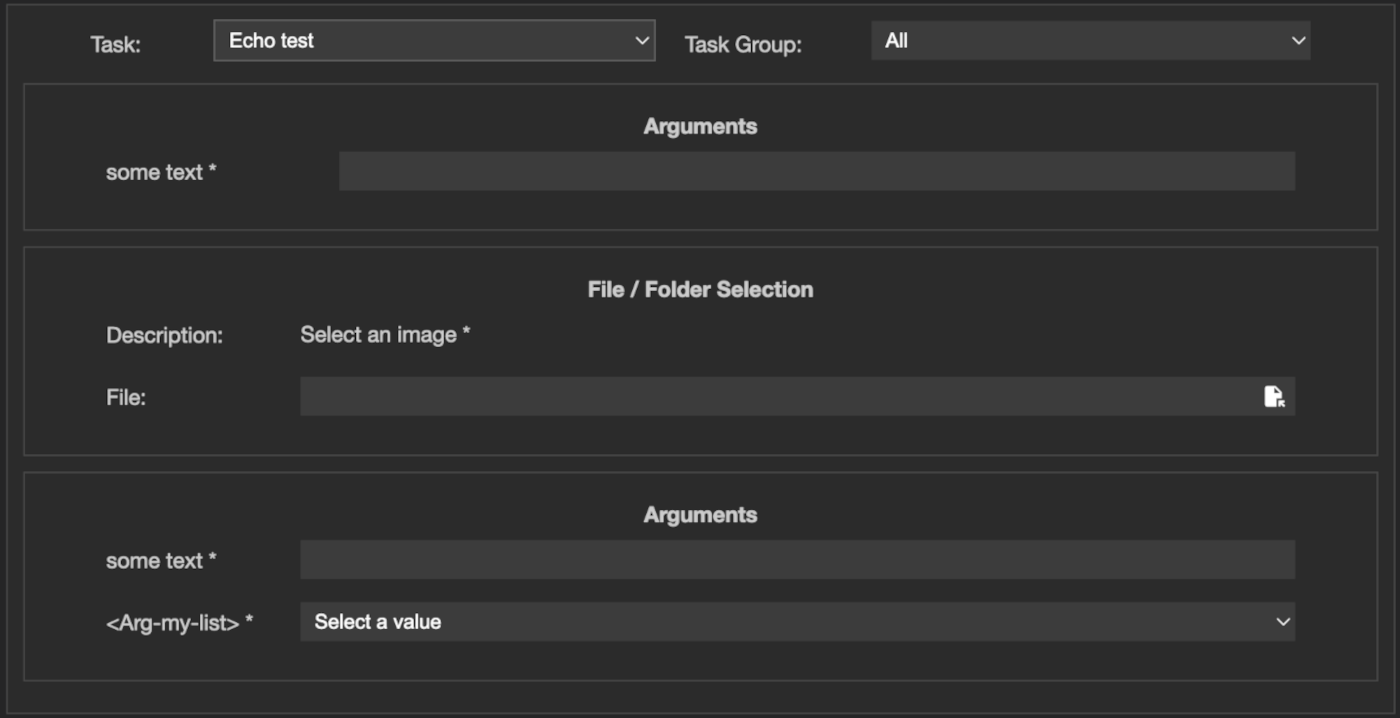
If the task needs anything from the operator, sections for it appear below the task - Arguments, Package Selection and File / Folder Selection. Batches can run unattended, so these are filled in when the batch is created, not when it runs.
📌 A task with a Secret argument cannot be run as a batch, because the batch would have to store the secret. Run that task directly instead.
Trigger
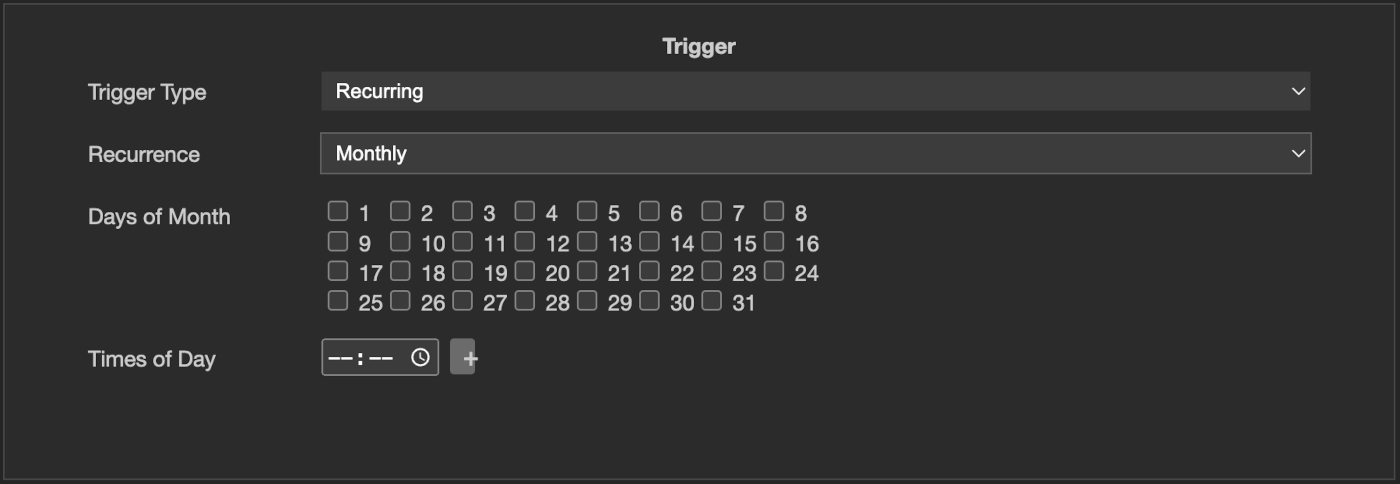
Choose when the batch runs with Trigger Type:
| On Demand | Runs only when you right-click the batch and select Run |
| Once | Runs once, at the date and time in Run At |
| Recurring | Runs on a schedule: Daily, Weekly on chosen days of the week, Monthly on chosen days of the month, at the Times of Day you add - or at a fixed Interval in minutes |
Options
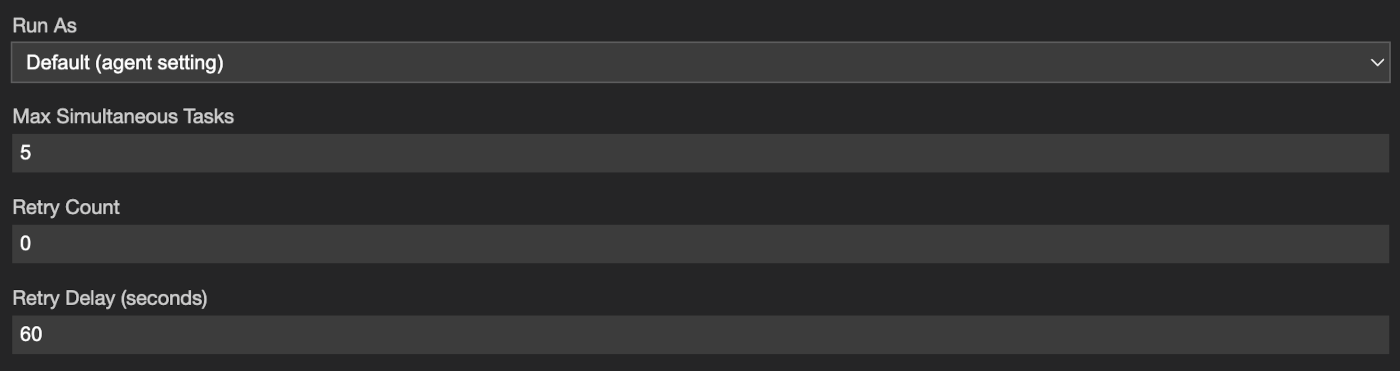
| Run As* | Default (agent setting) uses each agent's own worker mode; Worker Account runs the task as the agent's worker account |
| Max Simultaneous Tasks | How many agents run the task at the same time. Default: 5 |
| Retry Count | How many times to retry an agent that fails. Default: 0 |
| Retry Delay (seconds) | How long to wait before retrying. Default: 60 |
*Run As sets the account used on each agent. The batch itself always runs with the permissions of the operator who created it, on its own connection, and stops if that operator logs out of the configuration.
Click Save.
Results
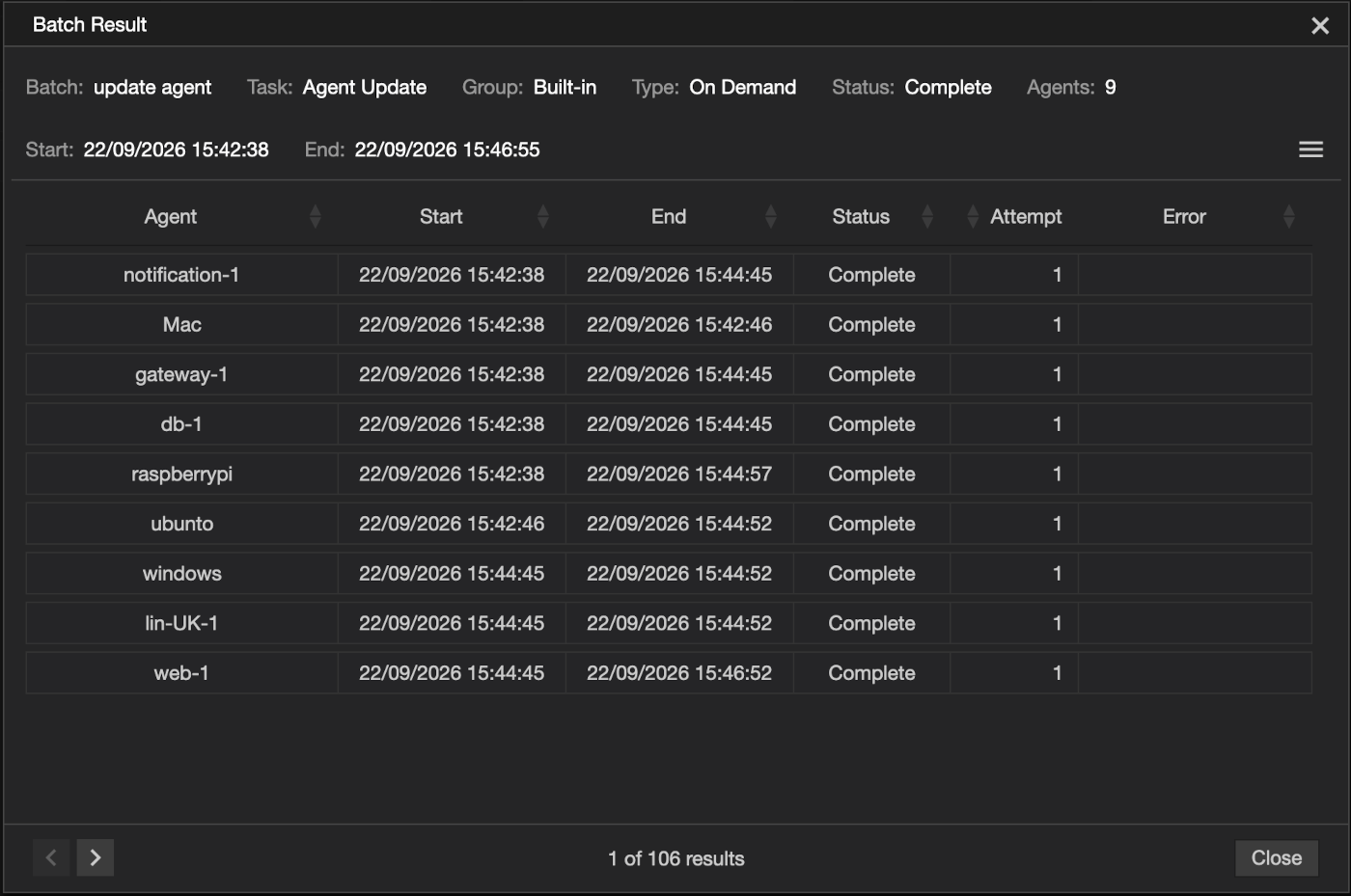
Double-click a batch to see its results. Each time the batch starts, a new batch result is recorded. The top section gives an overview of the batch result:
| Batch | The batch's name |
| Task | The task it ran |
| Group | The task's group |
| Type | The batch's trigger |
| Status | The status of the batch result |
| Agents | How many agents it ran on |
| Start | When the batch started |
| End | When it finished |
Below it, each agent is listed:
| Agent | The agent's name |
| Start | When the task started on that agent |
| End | When it finished on that agent |
| Status | How the task ended on that agent |
| Attempt | How many attempts were made - see Retry Count in Options |
| Error | Why the task failed, if it did |
Use the arrows at the bottom to move between earlier batch results. Stop appears while a batch is in progress, and stops it.
Permissions
📌 The options available to you depend on the agent's settings and your operator profile.
| Permission | Set in | Allows |
|---|---|---|
| Tasks | Agent settings | Running tasks on each target agent. Agents that don't allow it refuse the batch's task |
| Allow Batch | Operator profile | Opening Batch Tasks |
| Allow Tasks | Operator profile | Also needed, because batches run tasks. Without it, Batch Tasks is hidden even when Allow Batch is on |
| Run Batch | Operator profile | Running an On Demand batch with Run |
| Create/Edit Batch | Operator profile | Adding a batch, View/Modify and Remove |
| View Work Items | Operator profile | Opening an agent's results from the batch results |
See Configuration Options for all the settings.