Overview
The Agent Information function shows details of the agent and the machine it runs on, and lets you manage its services/daemons, processes and user accounts. It is organised into five tabs:
| Agent Info | The agent, the host system and the connection |
| Hardware | Processor, memory and disks, with live usage |
| Services | The services and daemons on the host |
| Processes | The processes running on the host |
| Users | The accounts on the host and their sessions |
Agent Info
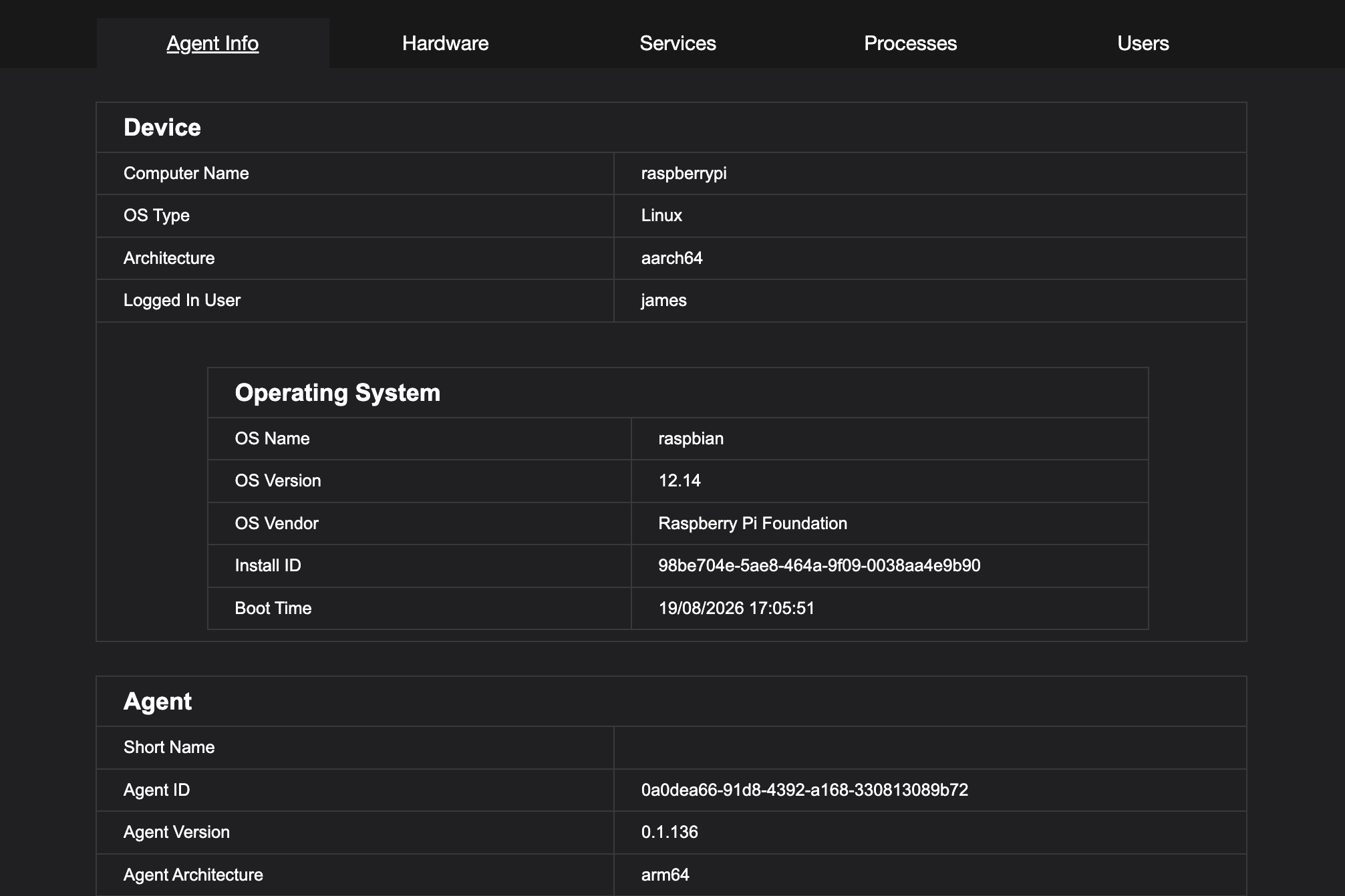
The Agent Info tab is organised into sections.
Device
| Computer Name | The host's name |
| OS Type | Windows, Linux or macOS |
| Architecture | The host's processor architecture |
| Logged In User | The user currently logged in to the desktop |
Operating System
| OS Name, OS Version, OS Vendor | The operating system and its version |
| Install ID | The identifier of this operating system installation |
| Boot Time | When the host last started |
Agent
| Short Name | The agent's friendly name |
| Agent ID | The agent's unique identifier |
| Agent Version | The installed version. When a newer version is available and your profile allows Update Agent, an Update Available button is shown here |
| Agent Architecture | The architecture the agent was built for |
| Process Type | How the agent is running - as a service/daemon or standalone |
| Agent Running As | The account the agent runs under |
| Worker Mode | The identity work runs as - see Configuration Options |
| Configuration | The name of the agent configuration it was enrolled with |
| Identity Certificate Installed | When the agent's current certificate was installed |
| Last Connected | When the agent last connected |
| User Defined Professional | List of Keys + Values from the unique.ini file |
Connection
| IP Address | The host's address |
| MAC Address | The hardware address of its network interface |
| Interface | The name of network interface |
Hardware
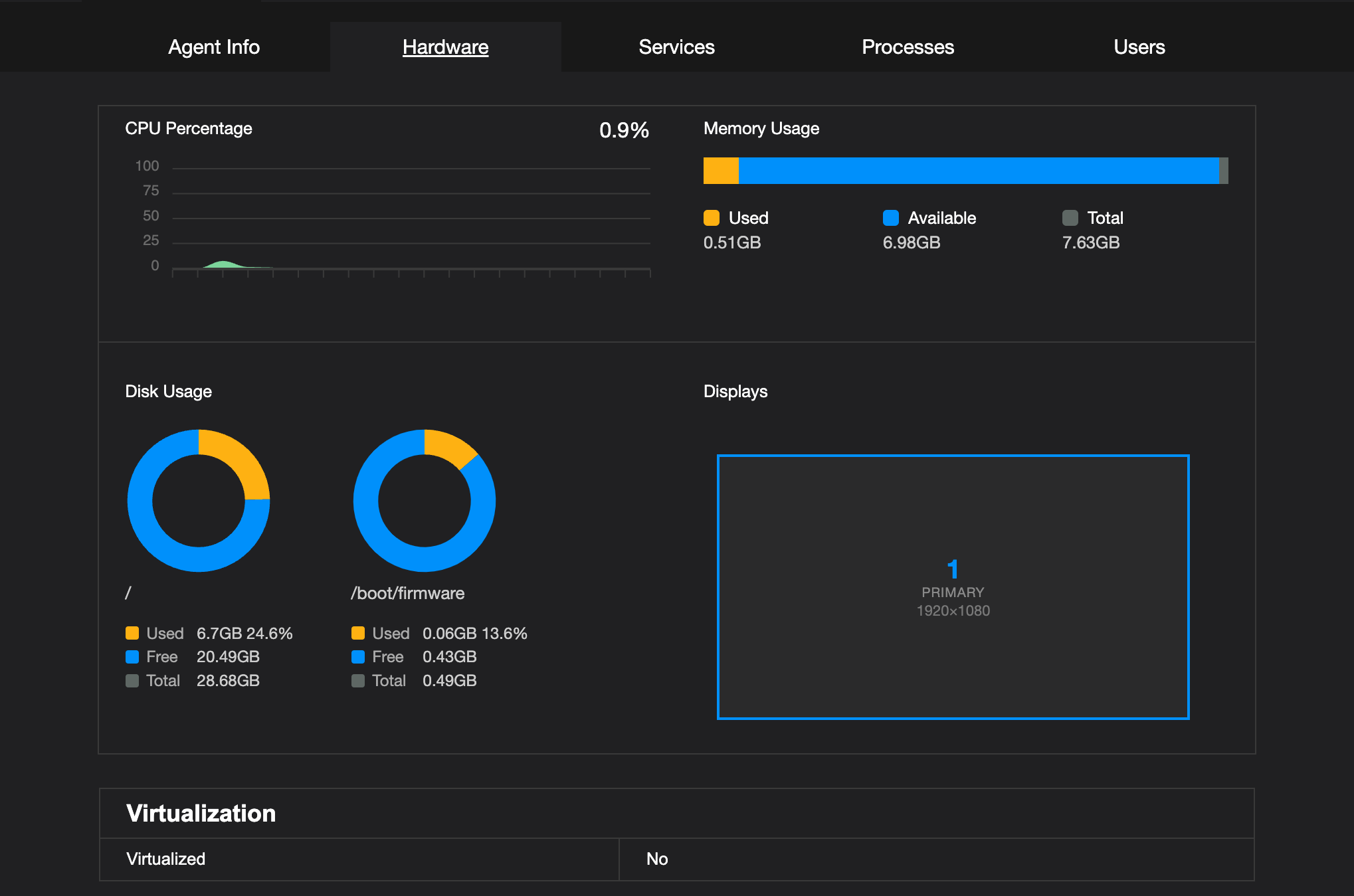
The Hardware tab shows live CPU Percentage, Memory Usage and Disk Usage charts, which update every few seconds while the tab is open, followed by the details of the machine:
| Virtualization | Whether the host is a virtual machine and, if so, the hypervisor and type |
| Processor | Architecture, vendor, model, sockets, cores, threads and speed |
| Memory | Total memory |
| Disks | Each disk's mount point, device, type and size |
Services
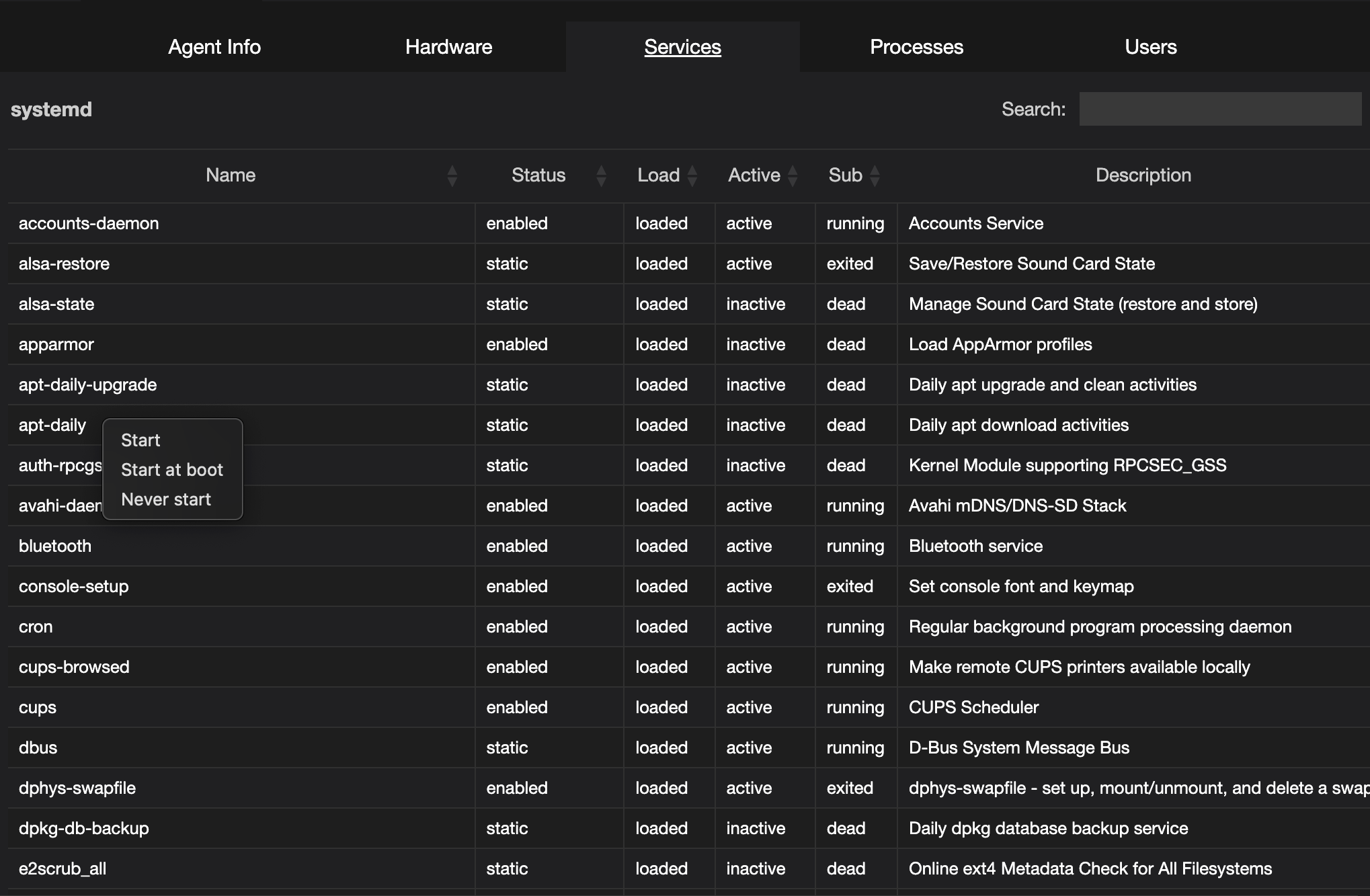
The Services tab lists the services and daemons on the host. The columns follow the operating system - systemd units on Linux, services on Windows, and launchd jobs on macOS. Double-click a service to read its description.
Actions
Right-click a service for its menu. The options offered depend on whether it is running and how it starts.
| Start | Start the service |
| Stop | Stop the service, after confirming |
| Restart | Stop and start the service, after confirming |
| Start at boot | Start the service automatically when the host starts |
| Start automatically, Start manually | Windows - choose whether the service starts with the host or only when asked |
| Never start | Stop the service starting at all, including after a restart, after confirming |
Processes
The Processes tab lists the processes running on the host, with their Pid, Name, User, CPU %, Mem %, Memory and Threads.
Right-click a process and select Stop to end it.
Users
The Users tab lists the accounts on the host and it state, the table live updates to refelect any change.
| User | The account name |
| Full Name | The account's full name, where the host records one |
| Admin | Marked when the account has administrator privileges |
| Since | When the current session started - blank when the account is not logged in |
| Type | The session type: graphical, console or remote |
| Interactive | Whether the account can be logged in to at all |
| Locked | Marked when the account is locked |
| Logged In | Marked when the account has a session |
| Active | Marked for the account whose session is in the foreground |
System accounts are hidden by default. Tick Show system accounts to include them, and use the Search box to filter the list.
Actions
Right-clicking a user opens a menu of session actions. Which are offered depends on the state of that account and on the operating system.
| Login | Log the account in, entering its username and password. Linux only, and only when nobody is logged in - use Switch instead when a session already exists |
| Switch to <user> | Make another logged-in account the active one. On Linux this asks for that account's password; on Windows it returns to the logon screen and leaves the current session running |
| Logout | End the account's session. Offered when the account is logged in |
| Lock account | Prevent the account logging in until it is unlocked |
| Unlock account | Allow a locked account to log in again |
| Reset password | Set a new password for the account, entered and confirmed |
Permissions
📌 The options available to you depend on the agent's settings and your operator profile.
| Permission | Set in | Allows |
|---|---|---|
| Agent Info | Agent settings | Using Agent Information on this agent |
| Agent Info | Operator profile | Opening Agent Information |
| Manage Services | Operator profile | Starting, stopping and changing services |
| Manage Processes | Operator profile | Stopping processes |
| User Control | Operator profile | The Users tab actions - login, switch, logout, lock, unlock and reset password |
| Update Agent | Operator profile | Updating the agent from the Agent Version row |
See Configuration Options for all the settings.