Overview
Enrolment is the process used to securely add an Agent or Control to your Remote Tools configuration.
The Control needs to be enrolled first as this will be used to enrol and manage the Agents.
Enrolment Codes
The device being enrolled makes up its own enrolment code and displays it. The code is 12 digits long, shown as 123-456-789-012, and is valid for 1 hour.
The code is then typed in somewhere that already belongs to your configuration:
| First Control | On the Remote Tools website, signed in to your account - see Enrol First Control |
| Agent | On an enrolled Control, using Enrol Device - see Agent Enrolment |
| Additional Control | On an enrolled Control, using Enrol Device - see Enrol Additional Controls |
If a code is typed in wrongly it can be entered again. After 4 wrong attempts the enrolment request is cancelled, and the enrolment has to be started again on the device to get a new code.
📌 Only enter a code you have read from the screen of the device being enrolled. A code passed on by someone else belongs to whichever device made it up, and approving it would let that device join your configuration.
Enrol First Control
On the Control
- Start the control program
- From the Remote Tools menu, select Configuration
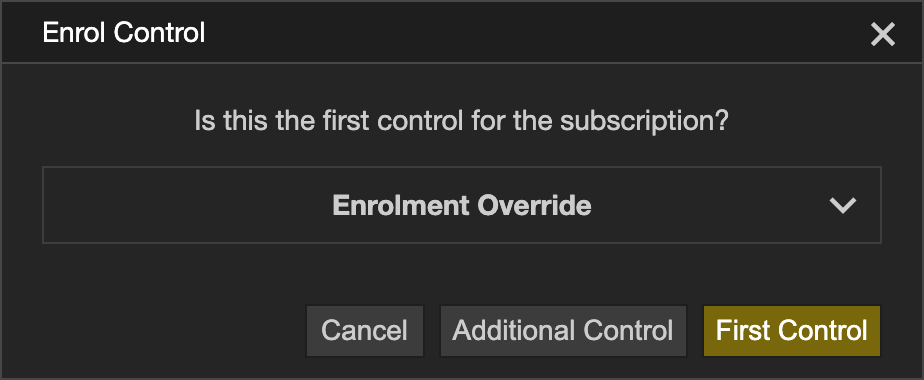
- Double-click Enrol Control and choose to enrol the first control for your
subscription
- The control displays its enrolment code - it is valid for 1 hour
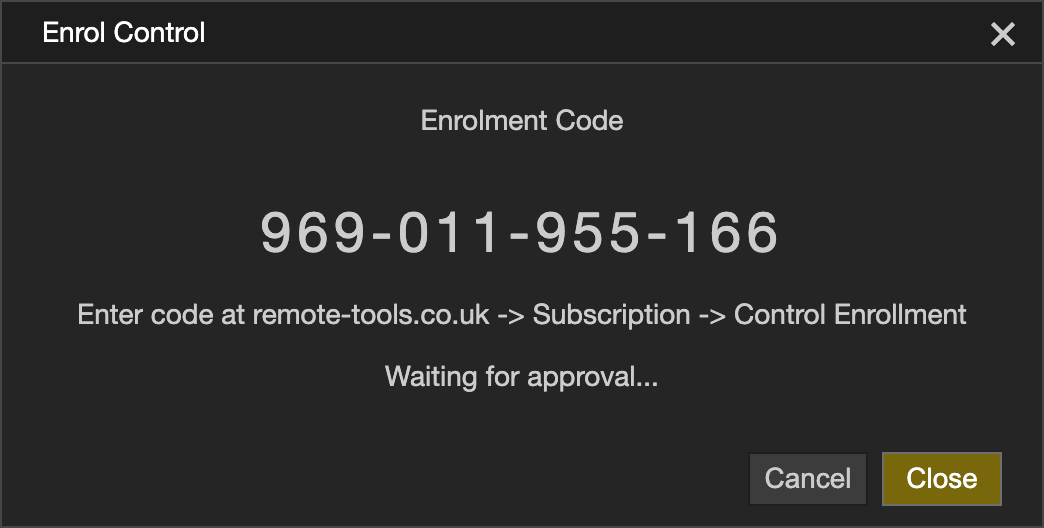
- Leave the control program open while the code is entered on the website
On the Website
- Login to your account on the remote-tools.co.uk website
- Navigate to the subscriptions page and double-click on the appropriate subscription
- Scroll down to the Control Enrolment section
- Type the code shown on the control into the Enrolment code box, then click
Enter Code

- When the code is accepted, the website shows that the control will now finish enrolling
Back on the control, the Configuration Assistant dialog opens - see Configuration Assistant.
Configuration Assistant
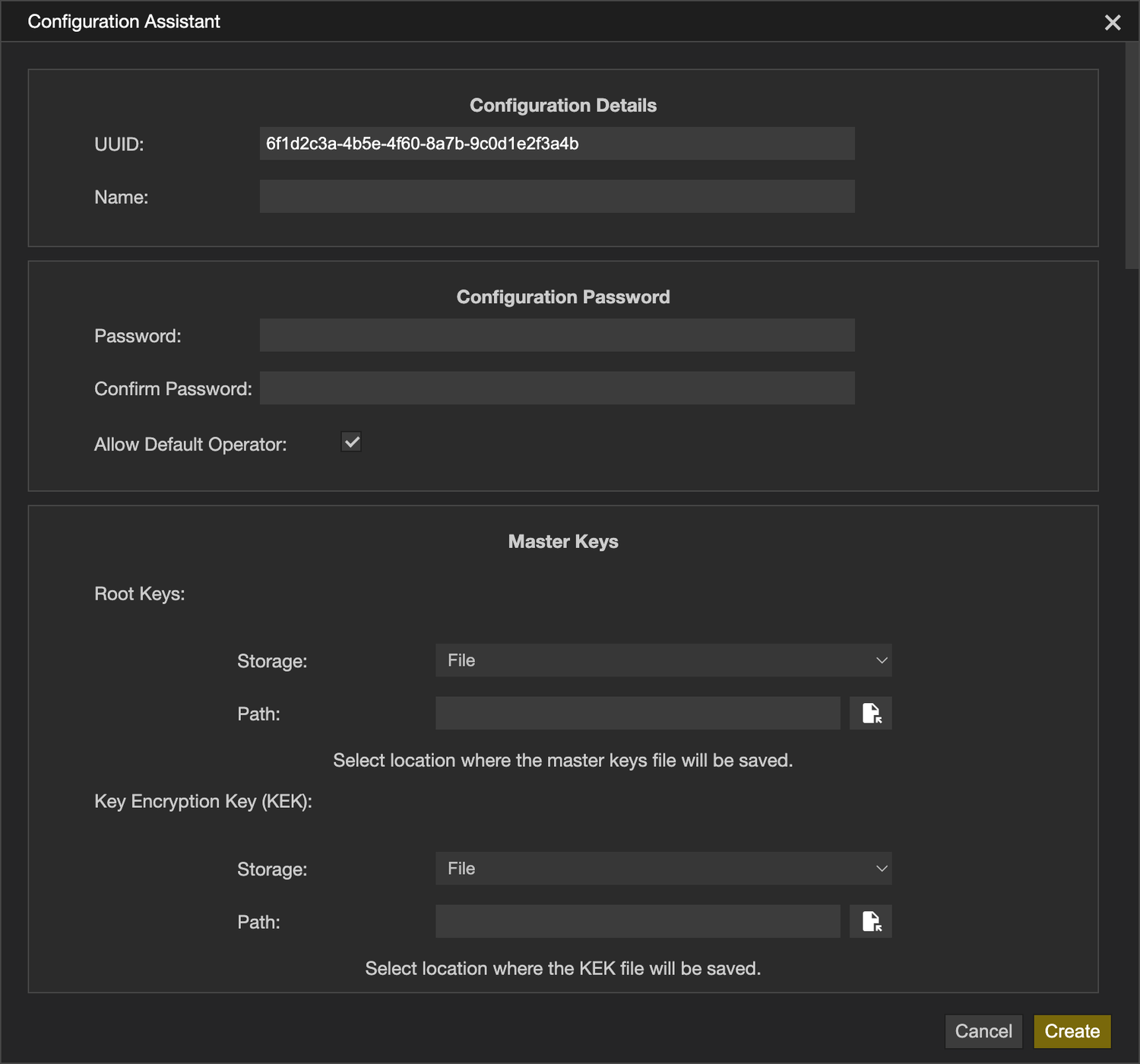
The Configuration Assistant dialog collects everything needed to create a working configuration.
Fill in the required details and amend any options you want to change, then click Create.
| Configuration Details |
|
| Password |
|
| Master Keys |
|
| Agent Settings |
|
| Operator Profiles |
|
| Operators |
|
The configuration files created can be changed later - see Sign Files.
Agent Enrolment
On the Agent
📌 On macOS the installer offers to do this for you. Enrol after installing is selected by default and opens a Terminal running the command below as soon as the installer closes - see Installation. The steps here are only needed if that option was not used.
- On the Agent to be enrolled
- Open a terminal or command prompt window
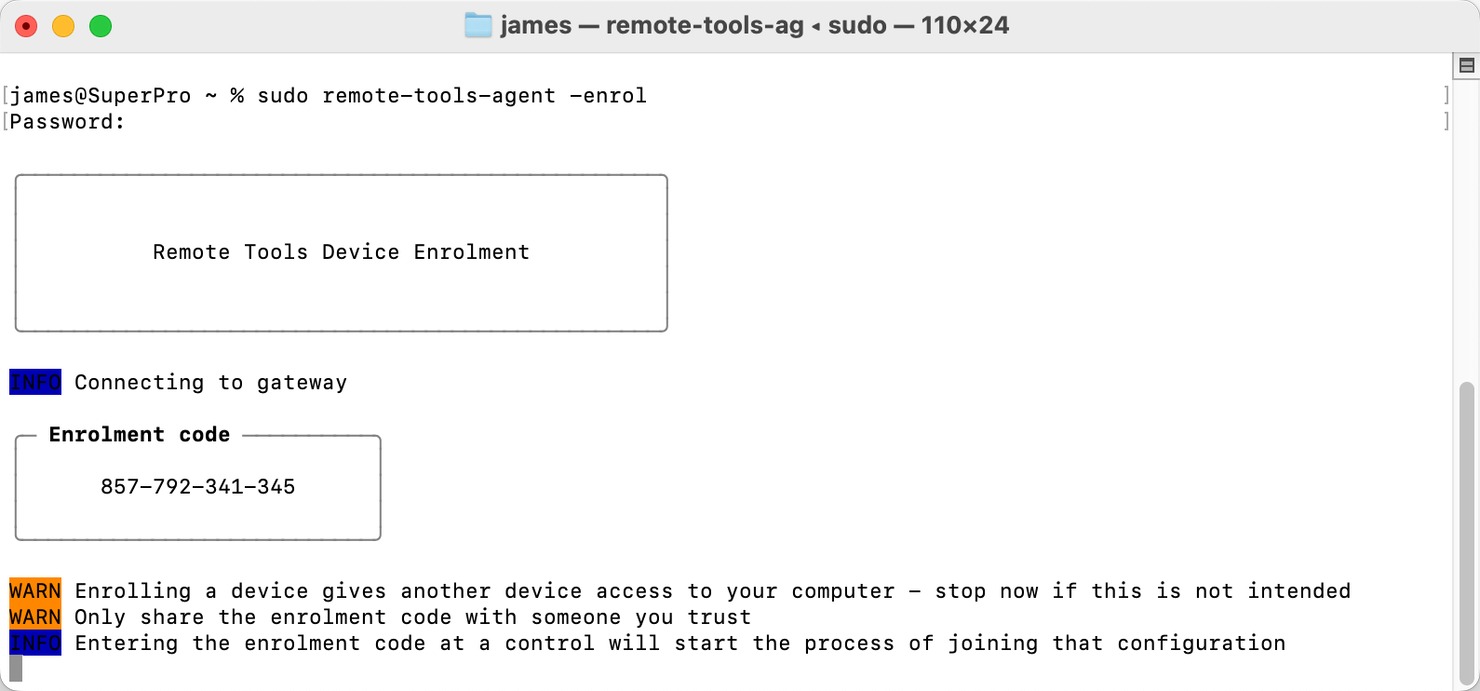
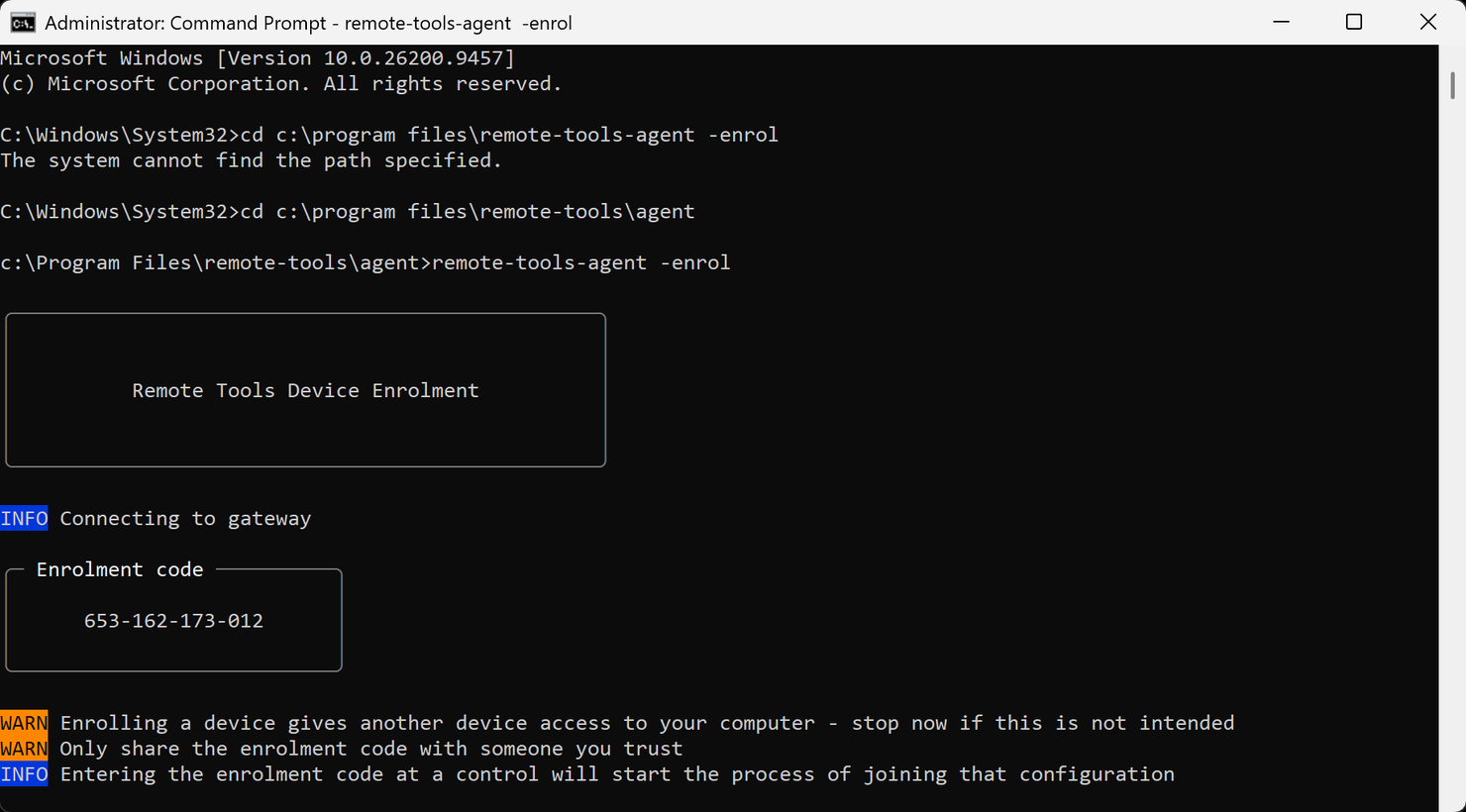
- Start the Agent program with the -enrol option, using sudo or Run as
administrator:
Linux: sudo /usr/sbin/remote-tools-agent -enrol
macOS: sudo /usr/local/bin/remote-tools-agent -enrol
Windows: remote-tools-agent.exe -enrol - On Windows the Agent is installed to \Program Files\remote-tools\agent, and the command prompt must be run as Administrator
- The Agent displays its Enrolment code - it is valid for 1 hour
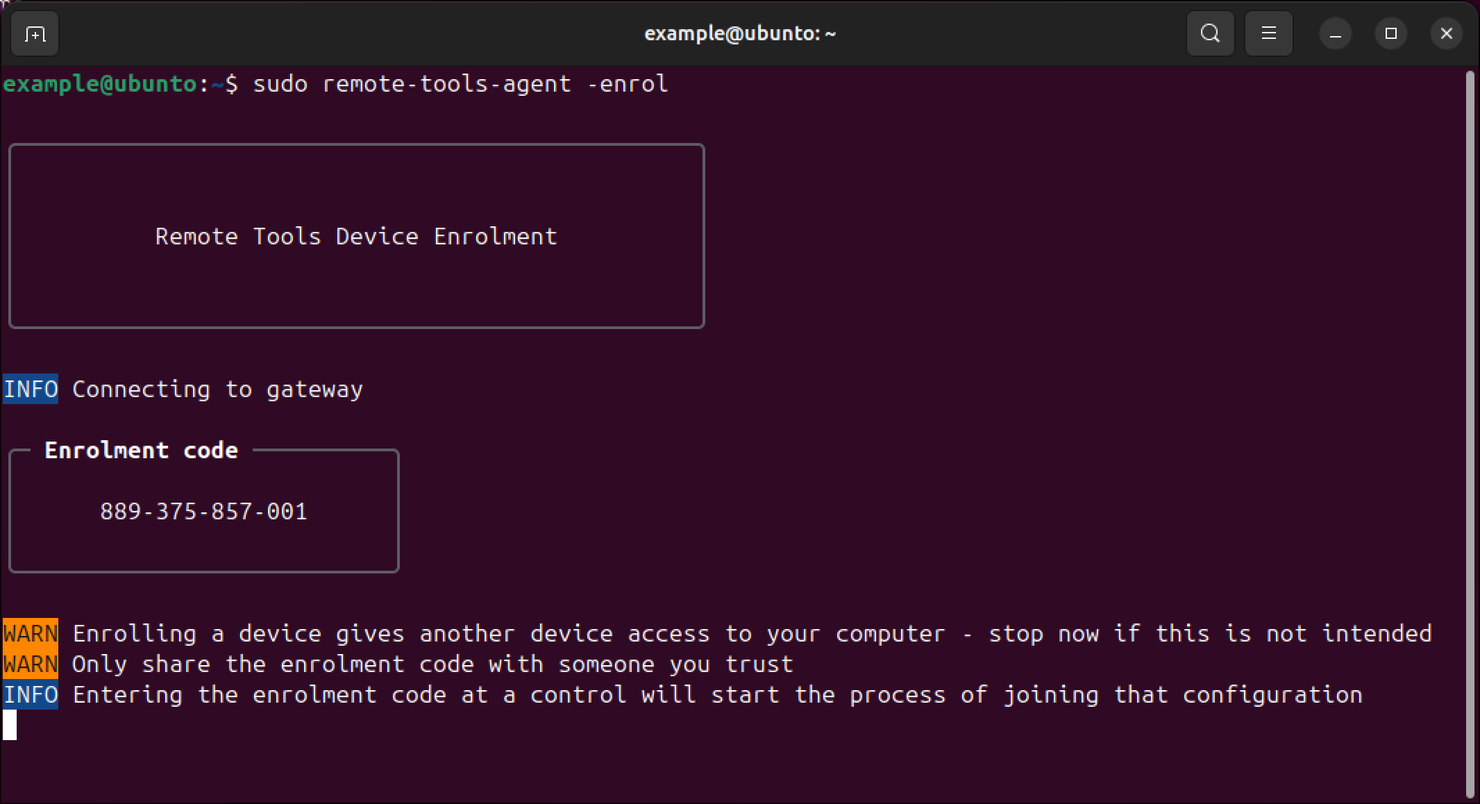
- Leave the command running while the code is entered on the control
- Once the code has been confirmed, the agent waits for the control to approve the enrolment
- When the control approves the enrolment, the configuration files will be transferred and the agent registered
On the Control
- Open the control program and sign in to a configuration
- Select Settings from the Home menu
- Select the Devices tab and click Enrol Device
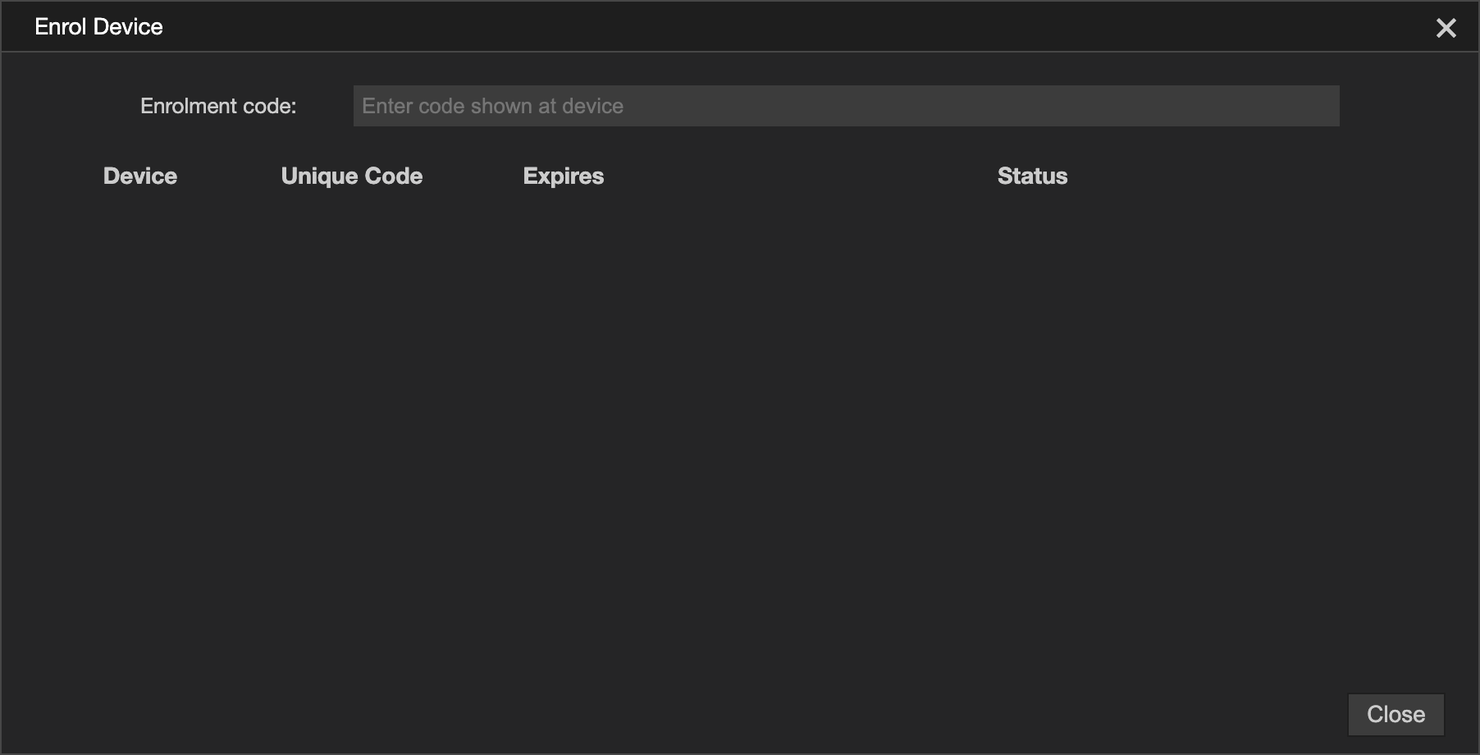
- Type the code shown on the agent and submit it
- The control checks the code with the agent. If it does not match, check the digits and enter it again - see Enrolment Codes
- Once the code is confirmed, the approval box opens and displays the details about the agent and
its environment, check these to ensure they are correct
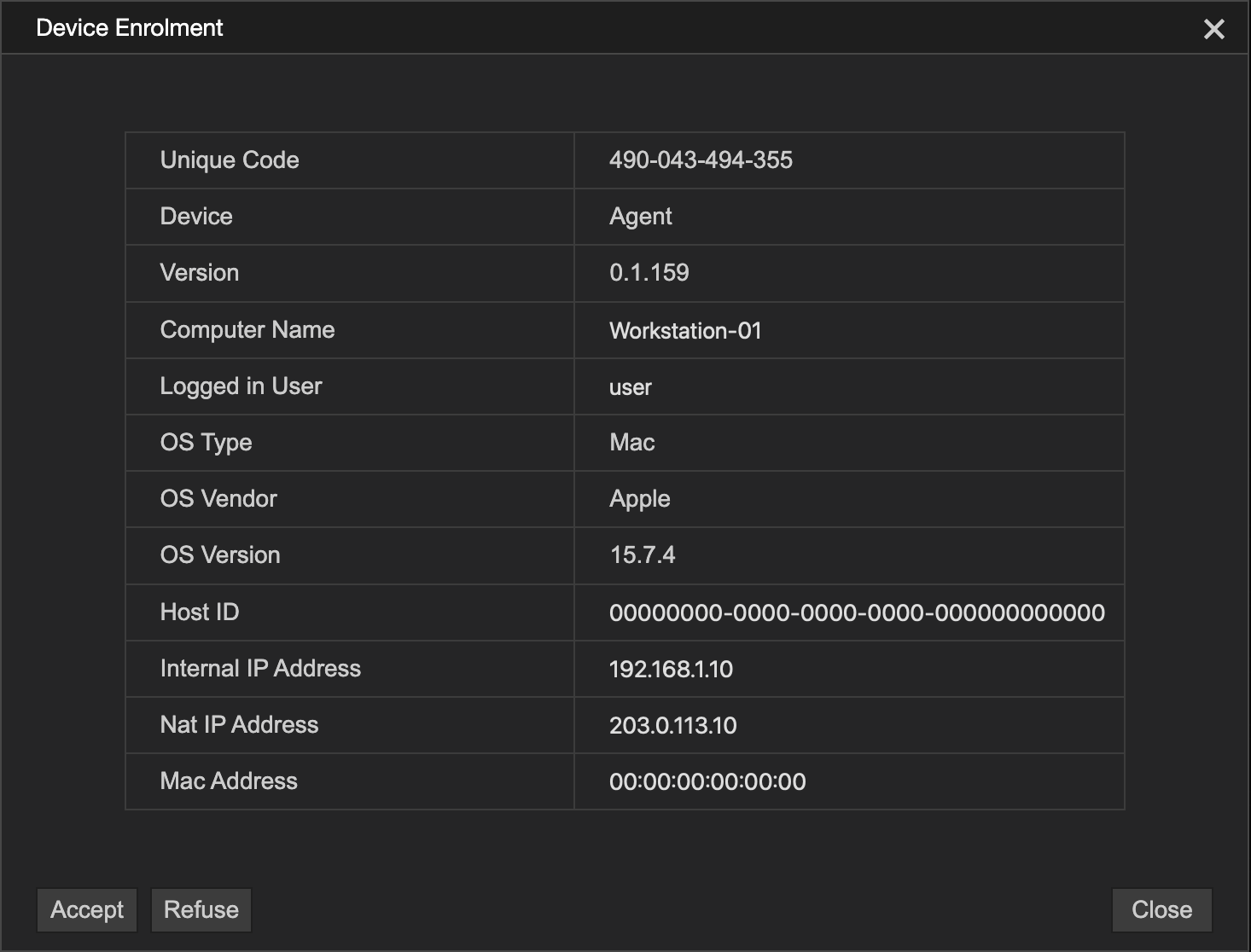
- If you are happy with the details, click Accept. If anything is not as expected, refuse the request and the agent's enrolment stops
- Choose the Agent Configuration the agent should use, select the configuration's
KEK File and click Ok to complete the enrolment
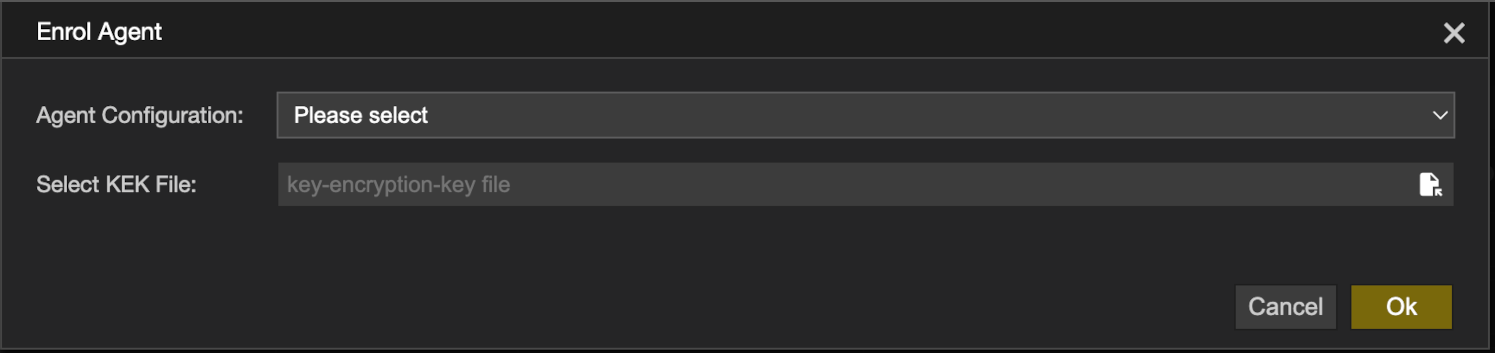
- A notification confirms the agent has enrolled

Enrol Additional Controls
Enrol First Control describes enrolling the first Control, which is the one that creates the configuration. Further Controls can be enrolled into an existing configuration so that more than one machine can manage it.
The new Control displays its own code, which is then entered on a Control that is already enrolled, not on the website.
On the New Control
- Install the Control - see Installation
- From the Remote Tools menu, select Configuration, then double-click Enrol Control and choose to enrol an additional control
- Enter the Configuration Password, confirm it, then click Ok
- The control displays its enrolment code - it is valid for 1 hour
- Leave the control program open while the code is entered on the enrolled Control
- Once the code has been confirmed, the Control waits for the other control to accept the request
- Once the request is accepted, the configuration is transferred and a success notification appears
📌 The password asked for here is the configuration password for the configuration you are joining, and it is what this Control will use to open it.
On the Enrolled Control
Enter the code and approve the request the same way as for an Agent - see On the Control:
- Select Settings from the Home menu
- Select the Devices tab and click Enrol Device
- Type the code shown on the new Control and submit it
- Once the code is confirmed, check the details in the approval box
- Click Accept
- Choose the Control Configuration the new Control should use, select the configuration's KEK File and click Ok