Overview
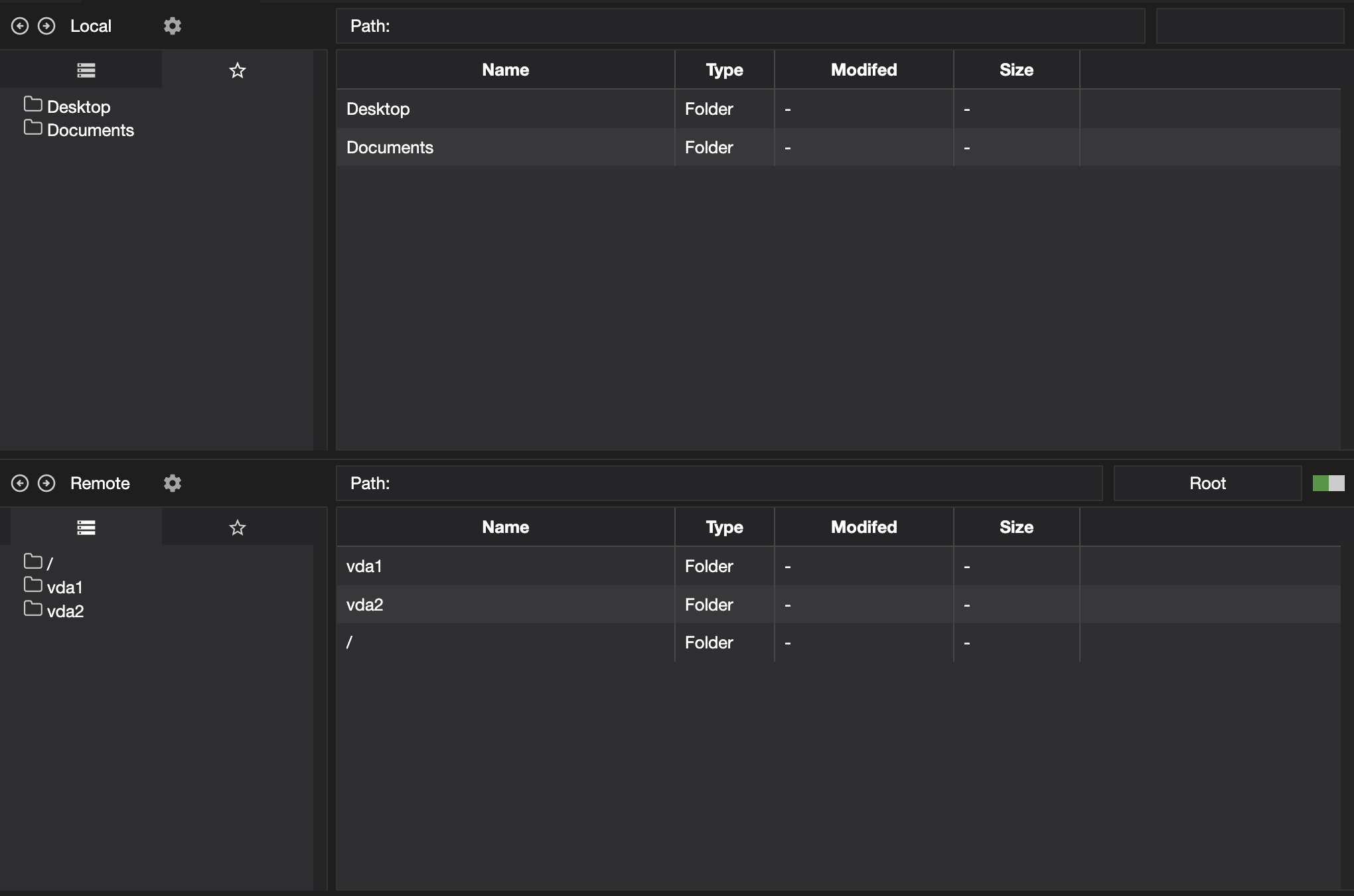
The File Manager lets you browse the file systems of the control and the agent side by side, and work with the files and folders on either.
The window is split in two: the top half (local) is the control and the bottom half (remote) is the agent. Each half has a path bar showing the folder you are in.
- Left Panel - the left panel of the local and remote sections has two tabs:
- Tree - a hierarchical list of the drives and folders
- Favorites - a list of all the saved favorite folders
- Privilege Elevation - certain operations on the agent may need the permissions of the root or System user. To do this toggle the elevation slider. See Privilege Elevation for more details.
Commands
Right-click a file or folder to open the command menu. Commands that don't apply to what is selected are greyed out.
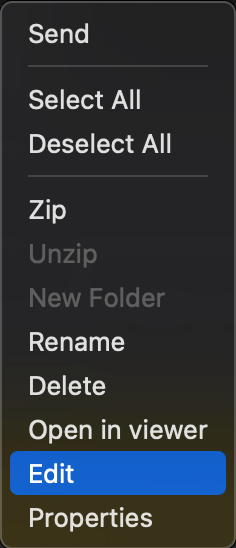
| Send | Copy the selection to the folder open in the other half - see Sending files |
| Select All, Deselect All | Change the selection |
| Zip | Compress the selection into a zip file |
| Unzip | Extract a zip file |
| New Folder | Create a folder in the current location |
| Rename | Rename the file or folder |
| Delete | Delete the selection |
| Open in viewer | Open the file in the Log Viewer |
| Edit | ProfessionalAgent files only - open the file in the File Editor |
| Properties | Show the file's details and permissions |
Sending files
- Select the files and folders you want to send on either the local or remote section
- In the other section navigate to the folder where you want the files to be received
- Right-click the selection and select Send
Files that already exist
If a file is already at the destination you are asked whether to overwrite it:
| Yes, No | Overwrite or skip this file |
| Yes All, No All | Overwrite or skip every remaining file that already exists, without asking again |
Transfer progress
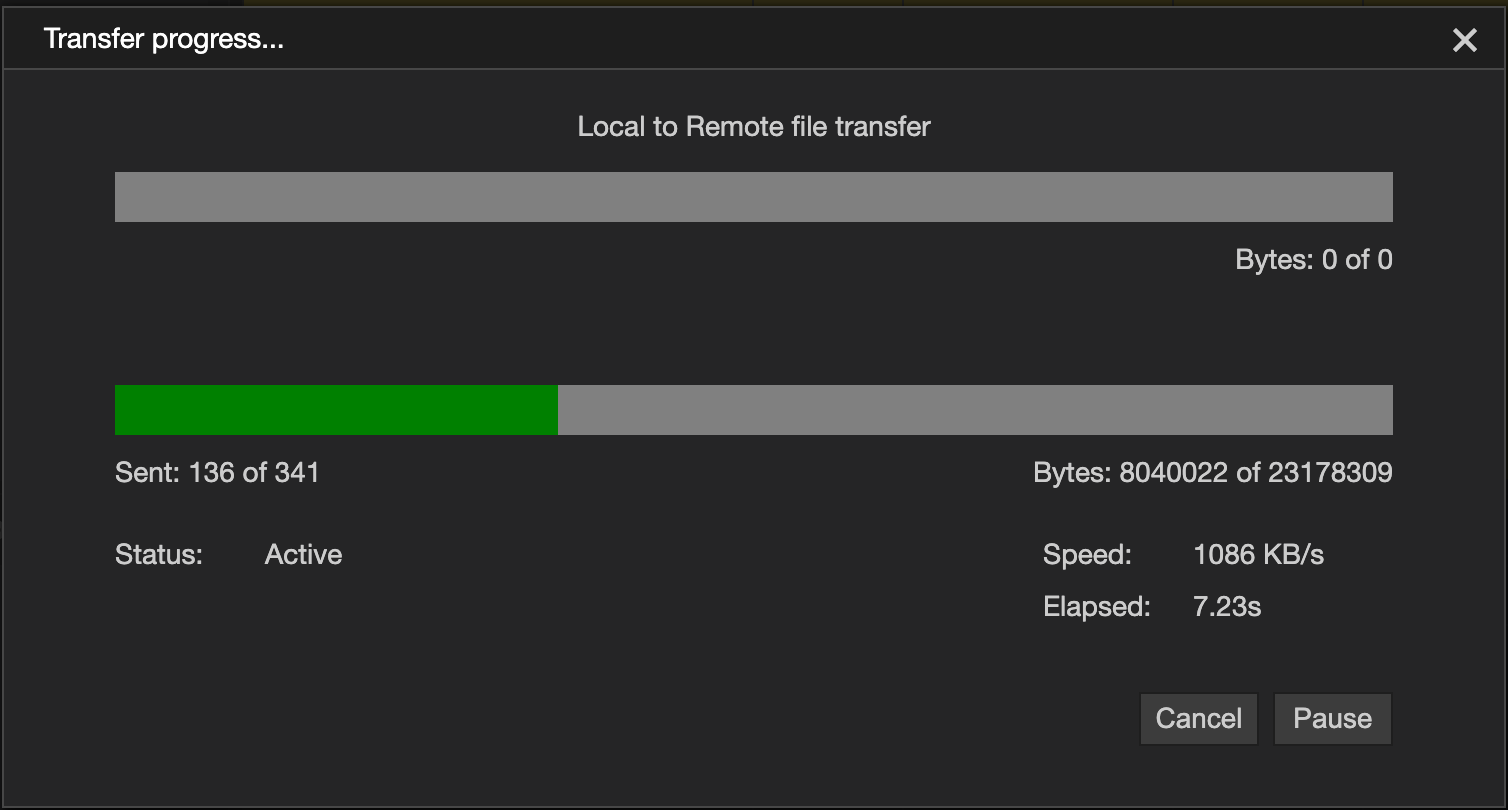
When the transfer starts a dialog appears, showing the progress and details of the transfer, if neccessary the transfer can be paused or cancelled.
Closing the progress dialog will stop the transfer
| Pause | Pause the transfer. The button changes to Restart, which carries on from where it stopped |
| Cancel | Stop the transfer |
Properties
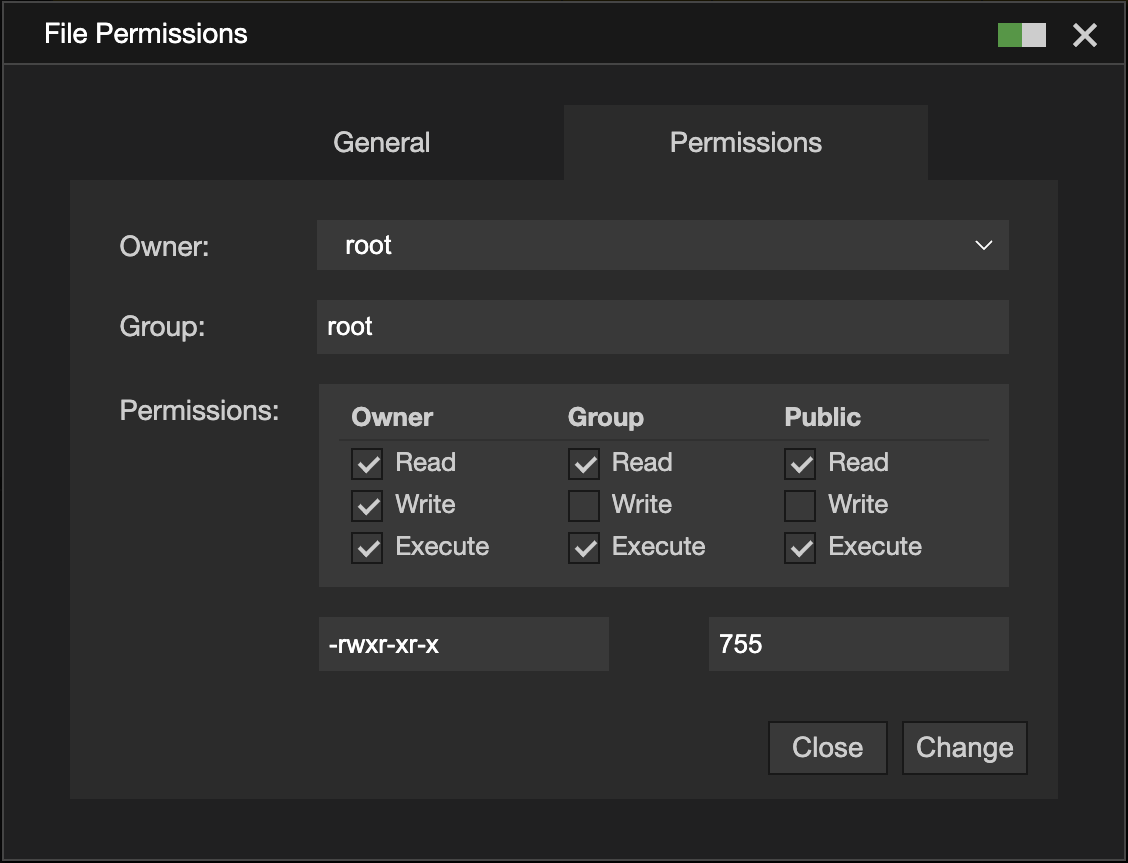
Properties shows general information about the file or folder on one tab, and its permissions on the other. To change the permissions, toggle the slider at the top of the panel.
Favorites
Favorites are saved folders you can jump straight to from the left panel.
- Add right-click the path bar and select Add to favorites
- Remove right-click it in the favorites panel and select Remove favorite
Settings
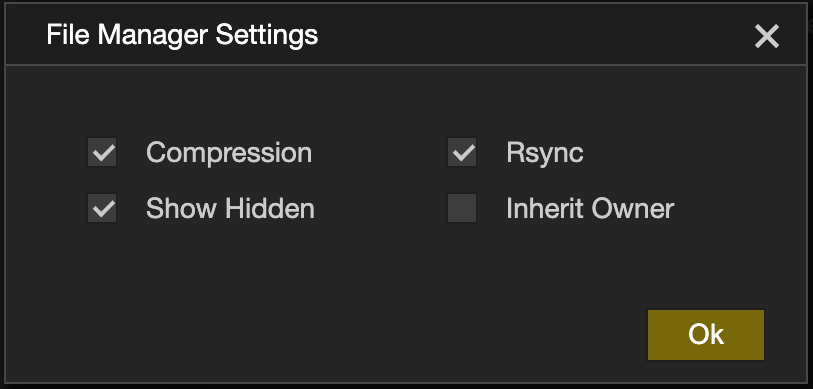
Click the settings icon to change how the File Manager behaves:
| Compression | Compress data while it is transferred. Helps most with text and other uncompressed files |
| Rsync | When the destination already has a copy of a file, send only the parts that have changed |
| Show Hidden | Show hidden files and folders |
| Inherit Owner | Give transferred files the owner of the folder they are written into, rather than the account doing the transfer |
Permissions
📌 The options available to you depend on the agent's settings and your operator profile.
| Permission | Set in | Allows |
|---|---|---|
| File Manager | Agent settings | Using the File Manager on this agent |
| File Transfers | Agent settings | Sending files to and from this agent |
| File Editor | Agent settings | Editing files on this agent |
| Allow File Manager | Operator profile | Opening the File Manager |
| Send Files | Operator profile | Send |
| Edit Files | Operator profile | New Folder, Rename and Delete |
| Zip/Unzip | Operator profile | Zip and Unzip |
| File Viewer | Operator profile | Open in viewer |
| File Editor | Operator profile | Edit |
| Change Permissions | Operator profile | Changing permissions in Properties |
| Hidden Files | Operator profile | The Show Hidden setting |
| Edit Favorites | Operator profile | Add to favorites and Remove favorite |
| Favorites Only | Operator profile | Limits you to your favorites and the folders beneath them. This is enforced by the agent, so it applies to every command and to transfers |
| Allow Privilege Elevation | Operator profile | Toggling the elevation slider on - see Privilege Elevation |
See Configuration Options for all the settings.