Overview
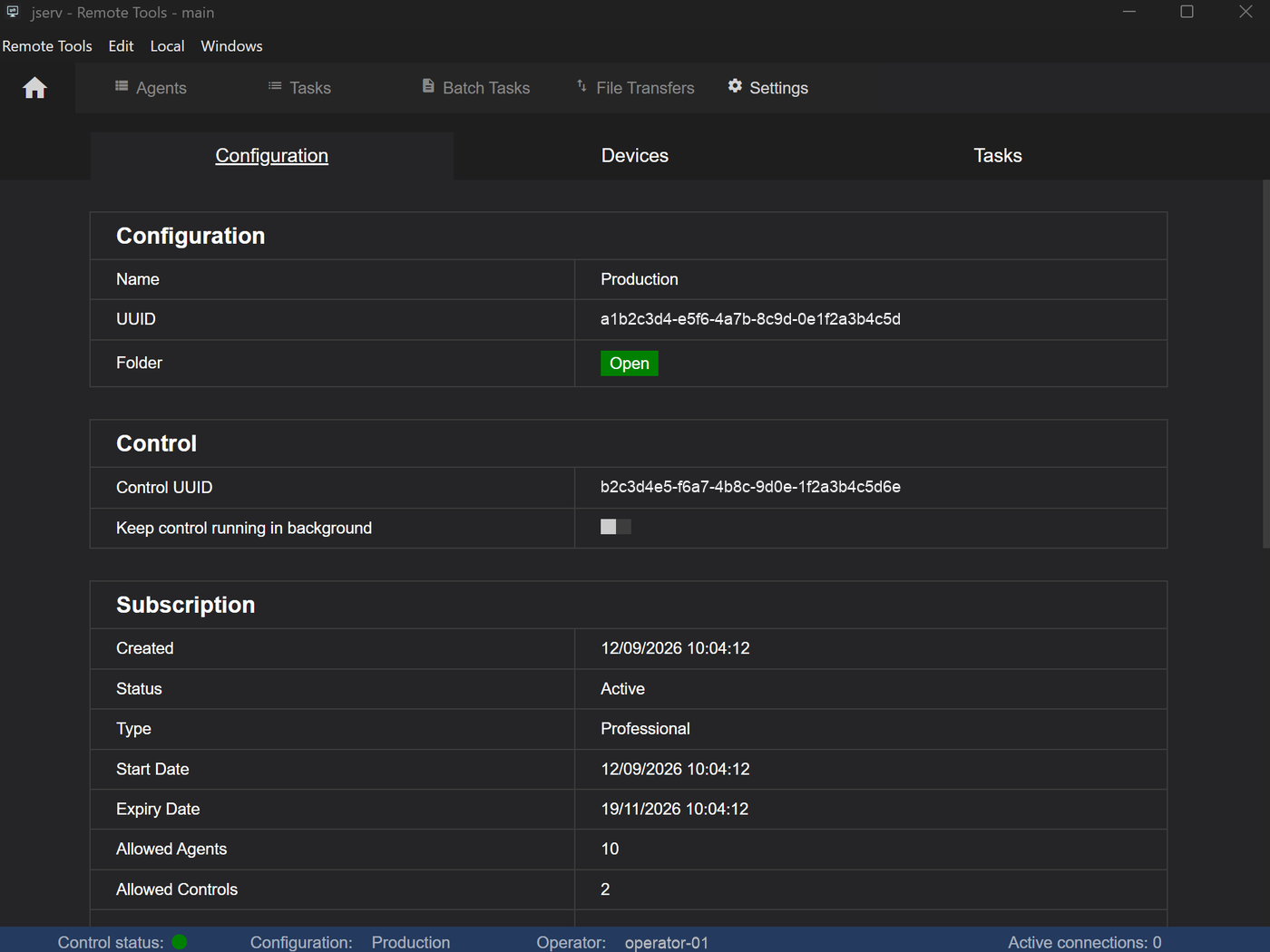
The Configuration tab shows the details of the loaded configuration - its subscription, the gateway it uses and the program versions. It is also where agent and control updates and installers are downloaded.
Open it by selecting Settings from the Home menu - see Getting Around.
Configuration
Shows the configuration's name and unique ID.
Folder - Open opens the folder that holds the configuration's files.
Control
Shows this control's unique ID, and has one option:
ProfessionalKeep control running in background - keeps the control running when the Remote Tools window is closed, so scheduled batches and port forwards keep working - see Batch Tasks.
Subscription
| Created | When the configuration was created |
| Status | The subscription's status |
| Type | The plan - Standard or Professional |
| Start Date | When the current subscription period started |
| Expiry Date | When the current subscription period ends |
| Allowed Agents | How many agents the subscription allows |
| Allowed Controls | How many controls the subscription allows |
| Data Allowance | How much of this period's relay data allowance has been used. Only traffic through a relay server counts - direct connections don't use it. See Pricing for the allowance on each plan |
If the subscription details can't be fetched, an Error row explains why.
Gateway
Shows the gateway this control is connected to, when the connection was made, and how many agents and relay connections are using it.
Downloads & Updates

This section keeps Remote Tools up to date. Download agent updates ready to send to your agents, update this control, and download the installers used to set up new devices.
| Agent | The latest agent version. Download fetches the agent updates to this control, ready to update agents |
| Control | This control's version. When a newer one is available, Update downloads it and restarts Remote Tools to finish |
| Installers | Download saves the agent or control installers, to install on new machines - see Installation |
A badge beside a version shows that a newer one is available.
Agents
ProfessionalCreate List beside Export Agent List builds a filtered list of agents and exports it - for reporting, or to use as a batch's Upload List - see Batch Tasks.