Overview
The File Transfer function is used to transfer files and folders between the control and an agent. A transfer can be in either direction, to or from an agent.
Professional The professional allows unlimited simultaneous transfers. On a Standard subscription it is capped at two.
Transfers can be started in several different ways:
- File Manager - started by hand, by selecting the files and folders and the path to copy them to - see File Manager
- Tasks - a File Transfer action in a task, or copying a package - see Tasks
- Agent Update - used to copy the new version of the agent
Transfers use two techniques to reduce the amount of data sent:
- Compression - uses an industry standard compression algorithm to shrink the data being transferred
- Rsync - when the destination already has a copy of a file, sends only the parts that have changed
Monitoring transfers
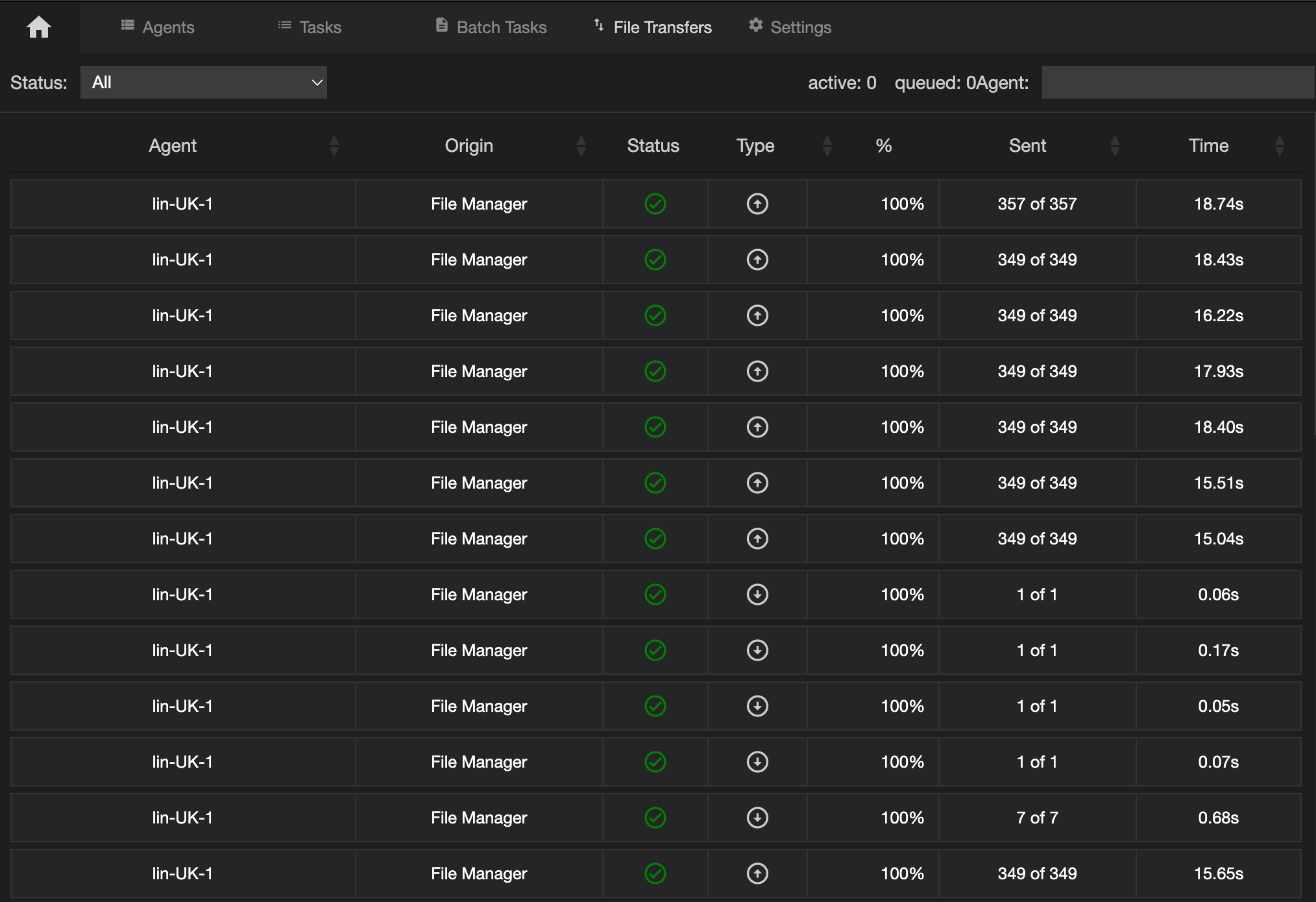
The home menu File Transfers view shows the details of the last 80 transfers.
The list can be filtered by Status - Active, Complete, Failed, Paused or Stopped. The counters at the top show how many transfers are active and how many are queued waiting to start.
Click a transfer to open its details, where it can be paused, restarted or cancelled. Clicking a failed transfer shows what went wrong.
Permissions
📌 The options available to you depend on the agent's settings and your operator profile.
| Permission | Set in | Allows |
|---|---|---|
| File Transfers | Agent settings | Transfers started from the File Manager on this agent |
| Allow File Manager | Operator profile | Opening the File Manager to start a transfer |
| Send Files | Operator profile | Sending files from the File Manager |
| Run Tasks | Operator profile | Transfers started by a task or a package - see Tasks |
| Update Agent | Operator profile | Transfers that copy a new version of the agent |
See Configuration Options for all the settings.