Overview
Remote Tools is composed of two primary components: the Remote Tools Control and the Remote Tools Agent. They need to be downloaded, installed and enrolled on each machine you want to use.
Where to get the installers
The first Control is downloaded from the Remote Tools website: sign in to your account and go to the Downloads page.
Once the Control is installed and enrolled, all other installers can be downloaded from within the Control program.
- Select Settings from the Home menu and open the Configuration tab
- Scroll down to Downloads & Updates, then click Download on the Installers row
- The window that opens lists the Agent installers for every supported OS and architecture, and the Control installer for the other operating system
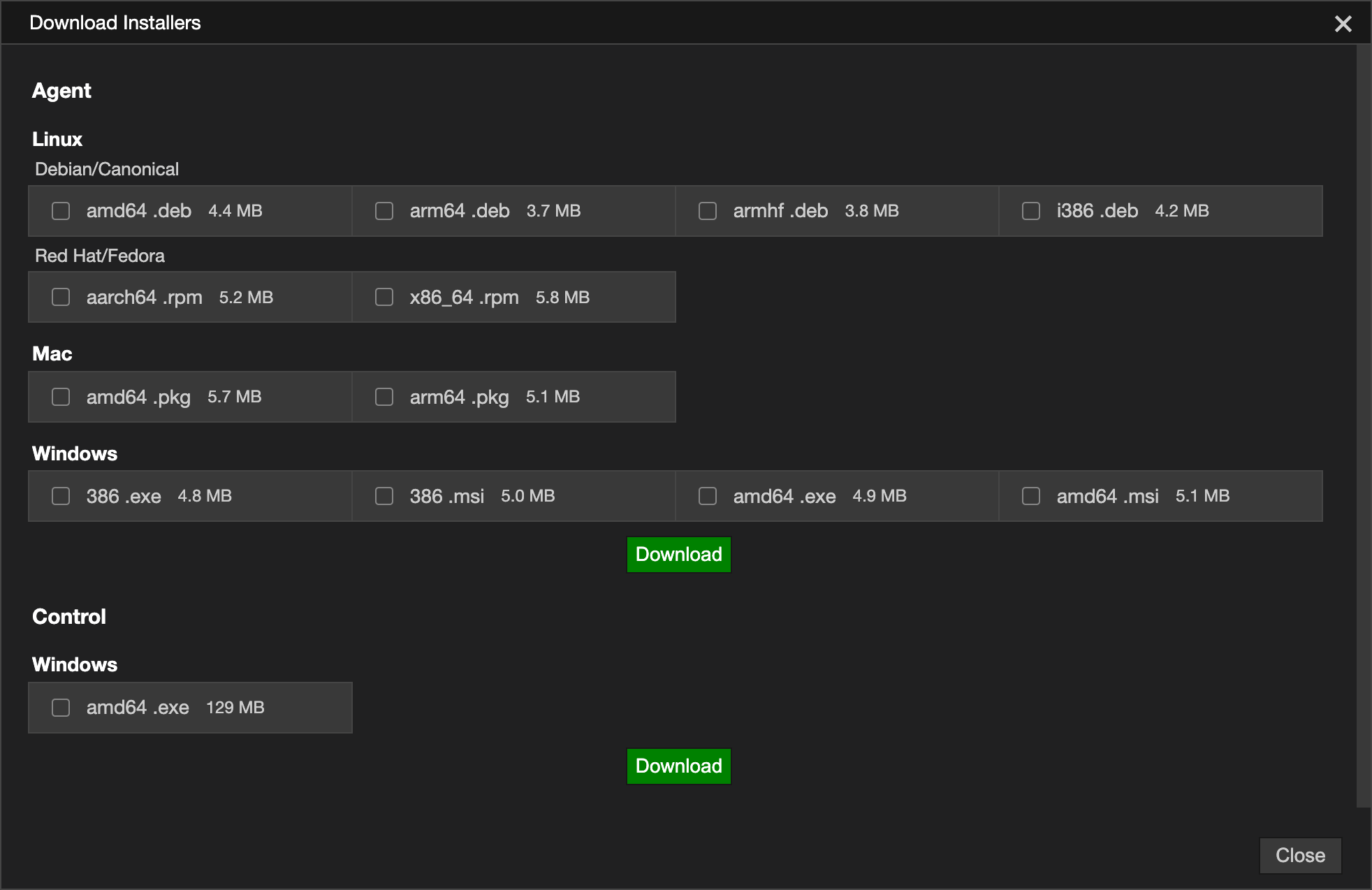
Select the installers you need and click Download for that section.
📌 The Open button only appears once something has been downloaded. It opens the folder containing the downloaded files.
Control Installation
Windows
- Double-click the installer executable
- Accept any permission prompts
- Follow the installation wizard until complete
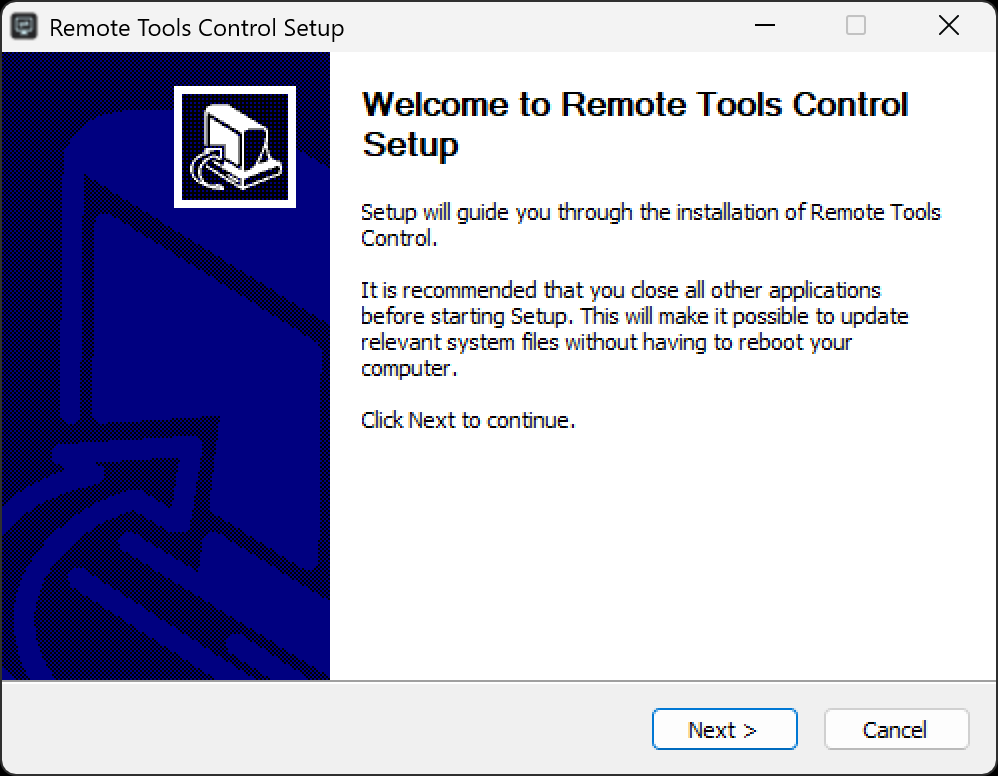
- Close the window when finished
- Shortcuts will be created on the Desktop and in the Windows Apps menu
Silent Installation
The Control program can also be installed silently from the command line:
Remote-Tools-Control /S
macOS
The macOS Control is supplied as a .pkg installer, named remote-tools-control-<version>-arm64.pkg.
- Double-click the .pkg file to open the installer
- Follow the installer through to the end
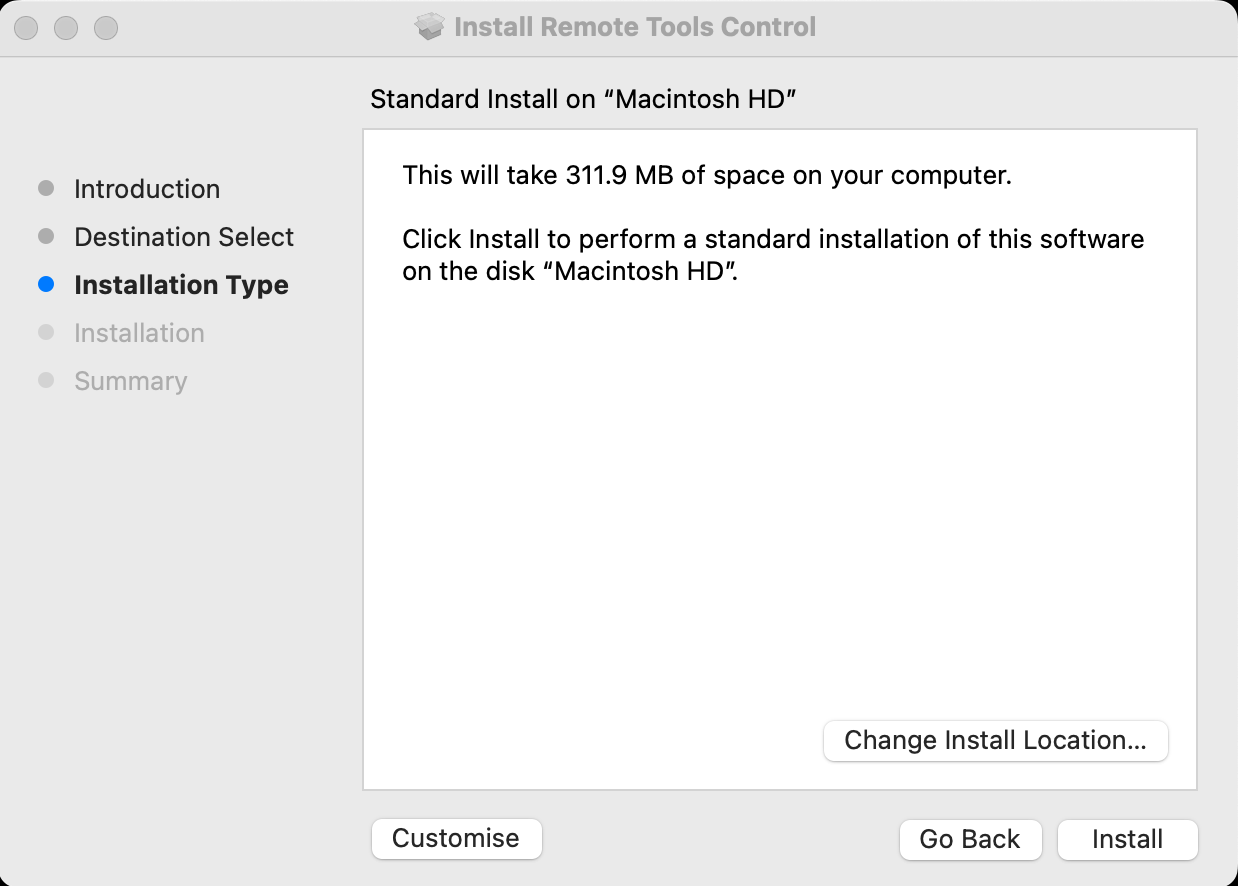
- Enter an administrator password when prompted
- The Control is installed into Applications, and can be started from there or from Launchpad
📌 The macOS Control is built for Apple silicon only.
As well as the application itself, the package installs a privileged helper, which is what allows the Control to update itself in place.
Agent Installation
Follow the instructions below to install the Agent on your specific operating system:
Windows
- Double-click the installer
- Accept any permission prompts
- Follow the installation wizard until complete
- Close the window when the installation is complete
Silent Installation
The Agent program can also be installed silently from the command line:
Agent-Installer /S
- Run Command Prompt as Administrator to suppress permission prompts.
Debian Linux
The dpkg installer is used to install the Remote Tools Agent on Debian based Linux operating systems - these include: Ubuntu, Raspberry Pi, Debian etc.
Packages are named remote-tools-agent_<version>_<arch>.deb, and one is built for each of the four architectures below. Install the one matching the machine:
| amd64 | 64-bit Intel and AMD - most desktops, laptops and servers |
| arm64 | 64-bit ARM - Raspberry Pi 3 and later running a 64-bit operating system |
| armhf | 32-bit ARM - Raspberry Pi running a 32-bit operating system |
| i386 | 32-bit Intel - older hardware |
If you are not sure which to use, run this on the machine - it prints the same name the package uses:
dpkg --print-architecture
📌 On a Raspberry Pi the answer depends on the operating system, not the hardware: 64-bit capable boards are often running the 32-bit version of Raspberry Pi OS, which needs armhf rather than arm64.
- Open a terminal
- Navigate to the directory containing the package
- Run:
- Enter the sudo password when prompted
sudo dpkg --install <package name>.deb
Fedora Linux
The Agent is supplied as an RPM package for Fedora and other RPM based distributions, named remote-tools-agent-<version>-1.<arch>.rpm. Packages are built for x86_64 and aarch64.
- Open a terminal
- Navigate to the directory containing the package
- Run:
- Enter the sudo password when prompted
sudo dnf install ./<package name>.rpm
The Agent is installed to /usr/sbin/remote-tools-agent. Nothing is started by the installation - the service is installed and started by enrolment, which is also what supplies the Agent's configuration. The package prints the command to run when it finishes.
macOS
The Agent is supplied as a .pkg installer, named remote-tools-agent-<version>-<arch>.pkg. Packages are built for arm64 (Apple silicon) and amd64 (Intel).
- Double-click the .pkg file to open the installer
- Follow the installer through to the end
- Enter an administrator password when prompted
The Agent is installed to /usr/local/bin/remote-tools-agent. As with the other platforms, the daemon is not installed or started by the package - enrolment does that once the Agent has its configuration.
Enrol after installing
The macOS installer offers to start enrolment as soon as it finishes. The option is a tickbox in the installer's Customize pane and is selected by default. When it is selected, a Terminal window opens once the installer closes, running the enrolment command for you.
📌 The offer is skipped on an unattended or remote installation, where nobody is logged in at the machine. Enrol by hand afterwards - see Enrolment.
Standalone
The Agent can also be run without installation. This is useful for temporary sessions or environments where minimal system changes are preferred.
- Create a folder to contain the Agent files (sub folders and files will be created when the Agent is started)
- Copy the correct version of remote-tools-agent (matching system architecture) into this folder
- Use sudo or Run as administrator to give the Agent process elevated privileges
- Enrol the Agent in the usual way - see Agent Enrolment