Overview
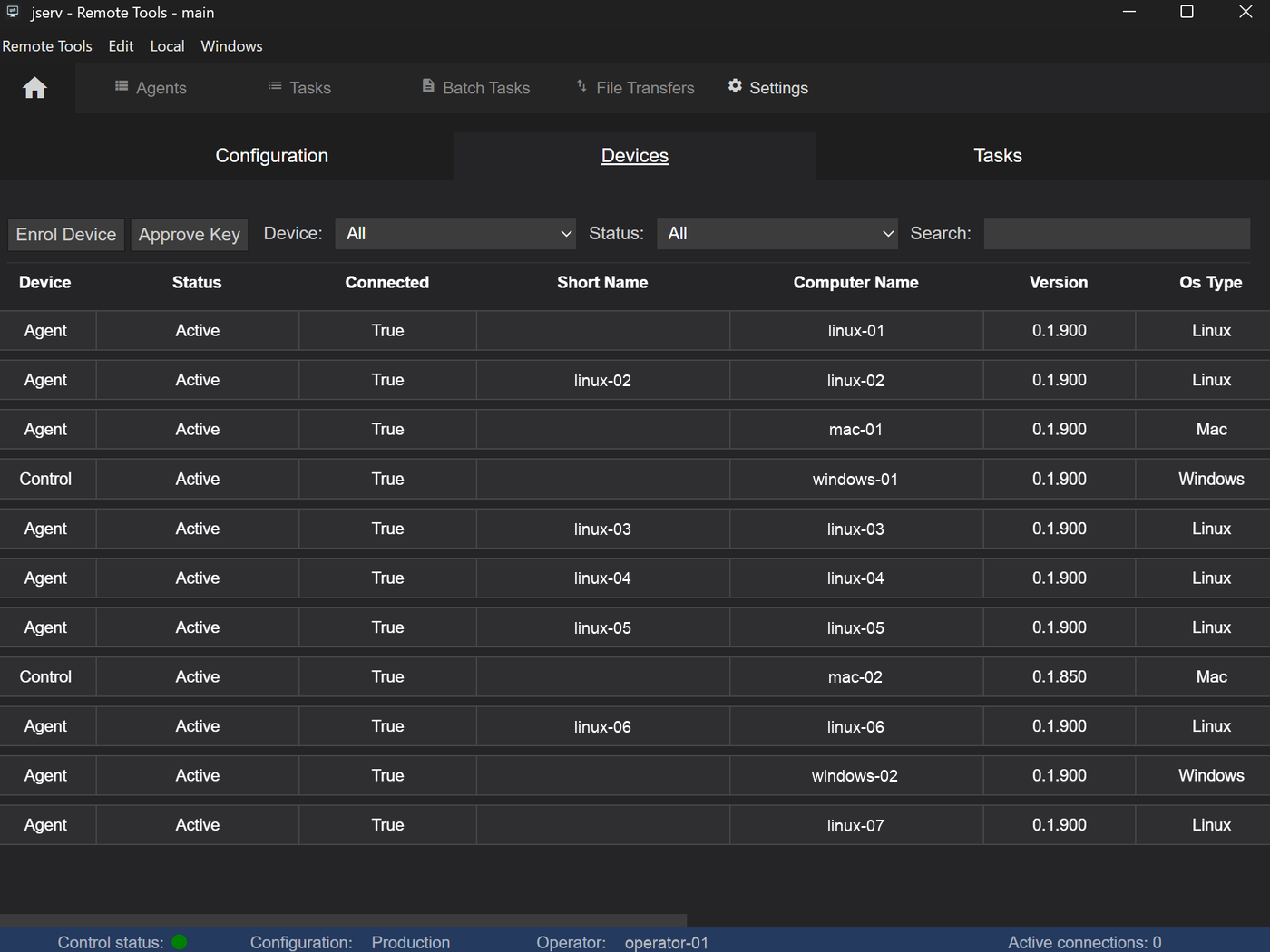
The Devices tab of the Settings view is where the devices linked to the configuration are managed. From here devices are enrolled and removed, agents can be updated or restarted, and any device can have its identity renewed.
Open it by selecting Settings from the Home menu and clicking the Devices tab. The tab is hidden if your operator profile doesn't allow you to view devices - see Permissions.
Navigation
Toolbar
| Enrol Device | Enrol a new control or agent - see Enrol Device |
| Device | Show all devices, or only agents or controls |
| Status | Show all devices, or only those that are connected or disconnected |
| Search | Find a device by computer name, short name, UUID or operating system |
The devices table
The devices table shows the details of each enrolled device:
| Device | Agent or Control |
| Status |
|
| Connected | True if the device is connected to the gateway now |
| Short Name | The agent's short name, if one has been set |
| Computer Name | The device's computer name |
| Version | The version of the program on the device |
| Os Type | Linux, Mac or Windows |
| UUID | The device's unique ID |
| Created At | When the device was enrolled |
| Disconnected At | When a disconnected device was last seen |
| Identity Cert Installed | When the device's current identity was installed |
Right-click menu
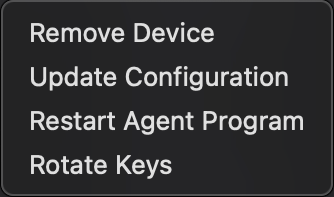
| Remove Device | Remove the device from the configuration - see Remove Device |
| Update Configuration | Agents only. Send the agent a new configuration - see Update Configuration |
| Restart Agent Program | Agents only. Restart the agent program - see Restart Agent Program |
| Rotate Keys | Renew the device's identity - see Rotate Keys |
| Reset Control Password | Controls only. Enter the code shown by a control whose password is being reset - see Reset Control Password |
None of these can be used on the control you are using, and all of them need the Manage Devices permission.
Enrol Device
Click Enrol Device to add a new agent or control. Type in the enrolment code the new device is showing - the control checks the code with the device, then shows the device's details so the enrolment can be approved or refused. Approving needs the configuration's KEK file.
A code that is typed in wrongly can be entered again. After 4 wrong attempts the device has to start its enrolment again to get a new code. See Enrolment for the full steps.
Remove Device
- Right-click the device and select Remove Device
- Check the details of the device to be removed
- Click Yes to confirm
⚠️ Removing a device is permanent, and it is disconnected immediately. To use it again, it has to be re-enrolled.
Update Configuration
This option changes the agent's configuration.
- Right-click a connected agent and select Update Configuration
- Choose the Agent Configuration it should use
- Select the configuration's KEK file
- Click Send
The agent restarts so the new settings take effect, and any open sessions to it are dropped.
The configuration is verified before it is sent, and again by the agent before it is installed. If anything fails, the agent keeps its current configuration and carries on running, and you are told the update failed.
See Configuration Options for the settings a configuration can contain, and Sign Files for how to re-sign a configuration after changing it.
Restart Agent Program
Restarts the agent program. The agent will reconnect in 1 or 2 minutes. Any open sessions to it are dropped.
Rotate Keys
Rotate Keys renews a connected device's identity.
- Right-click the device and select Rotate Keys
- Select the configuration's KEK file
- Click Yes
Renewing another control's identity needs that control to accept the request.
Reset Configuration Password
Approves another control resetting its password online, without the KEK file on that control. The control being reset displays a code - right-click its row, select Reset Control Password and type the code in. See Change Configuration Password - Another Control for the full steps.
Permissions
📌 The options available to you depend on your operator profile.
| Permission | Set in | Allows |
|---|---|---|
| View Devices | Operator profile | Seeing the Devices tab. Without it the tab is hidden |
| Manage Devices | Operator profile | Enrolling and removing devices, and everything on the right-click menu |
See Configuration Options for all the settings.