Overview
The Change Configuration Password function sets a new password for a configuration on a control
A password change needs to be approved by entering a one-time security code:
| Website | The code is entered on the subscription page of the Remote Tools website (this is the option to use if the configuration has a single control) |
| Another Control | The code is entered at another enrolled control |
Website
- Log in to the remote-tools.co.uk website
- Open the subscription page that the control belongs to
- Scroll down to the 'Change Configuration Password' section

📌 Do not proceed any further until you have successfully logged in and are ready to enter the code.
- With no configuration loaded, select Configuration from the menu
- Double-click Change Configuration Password, then choose Website
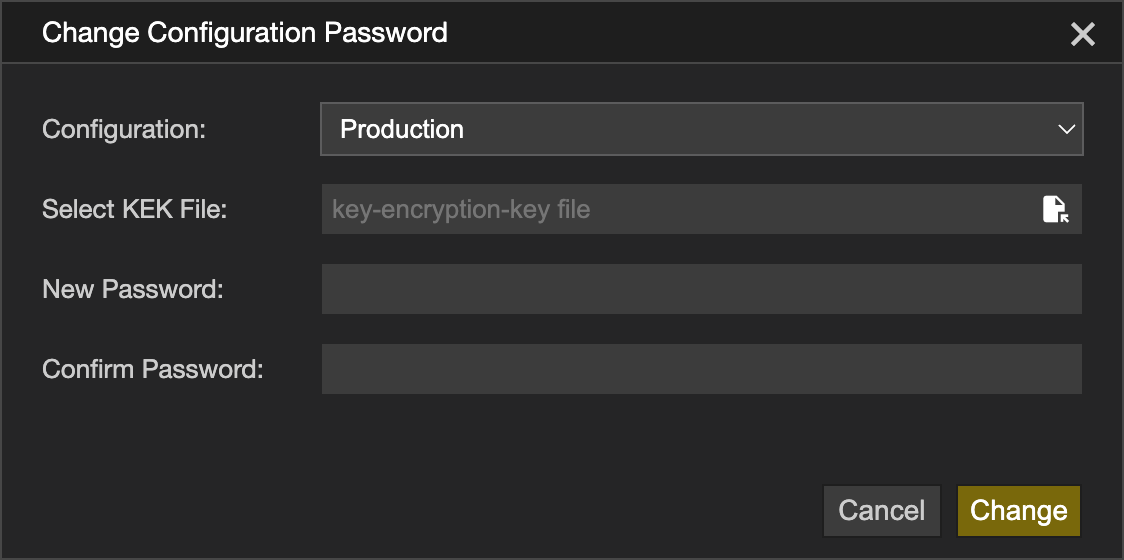
- Select the configuration from the Configuration list
- Choose the configuration's KEK using Select KEK File
- Enter and confirm the new password:
- New Password
- Confirm Password
- Click Change
- Enter the code shown on the control into the website (the code is valid for 1 hour)
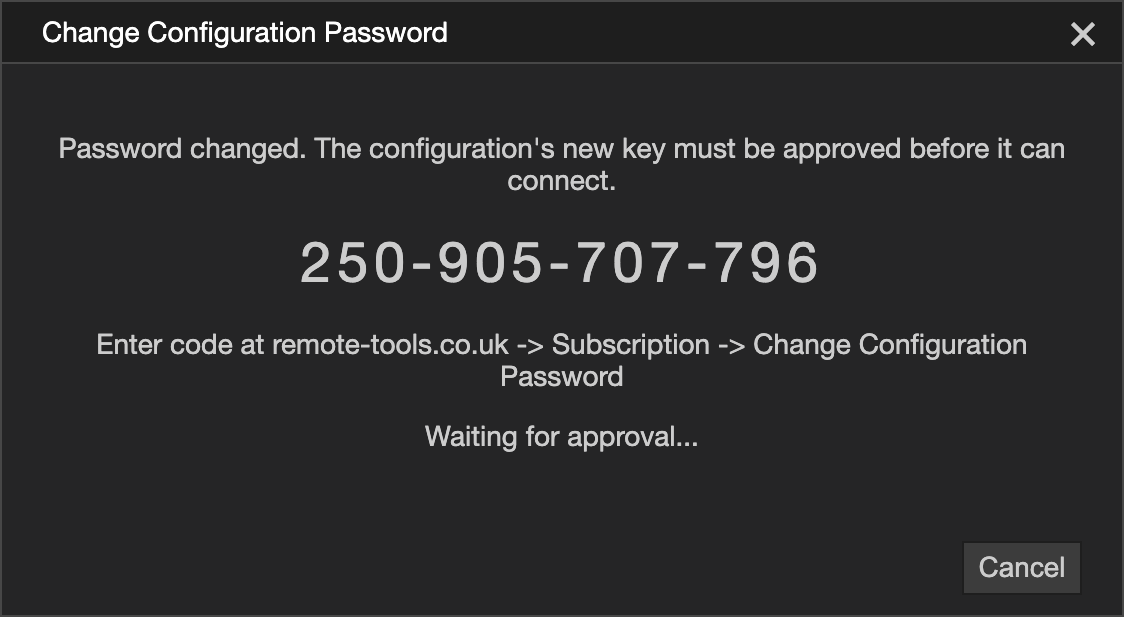
- When the request is approved the control will show a success notification (this may take a minute)
Another Control
The control being changed displays a code, which is then entered on another control enrolled in the same configuration.
On the control being changed
- With no configuration loaded, select Configuration from the menu
- Double-click Change Configuration Password, then choose Another Control
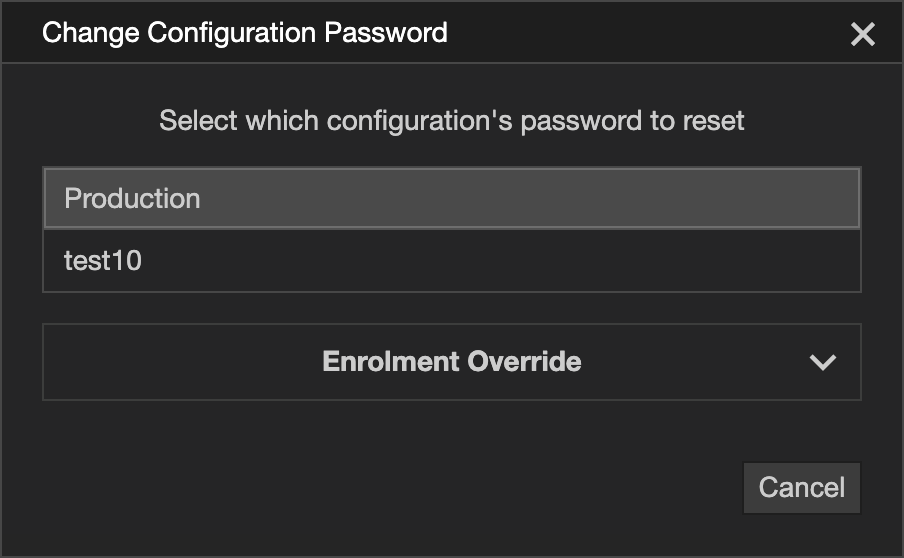
- Select the configuration whose password will be changed
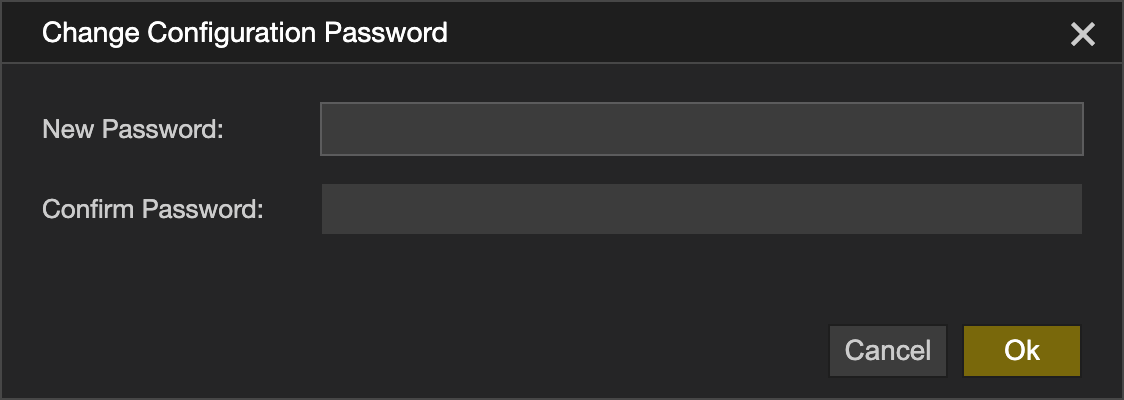
- Enter and confirm the new password, then click Ok
- The control displays a 12-digit code - it is valid for 1 hour
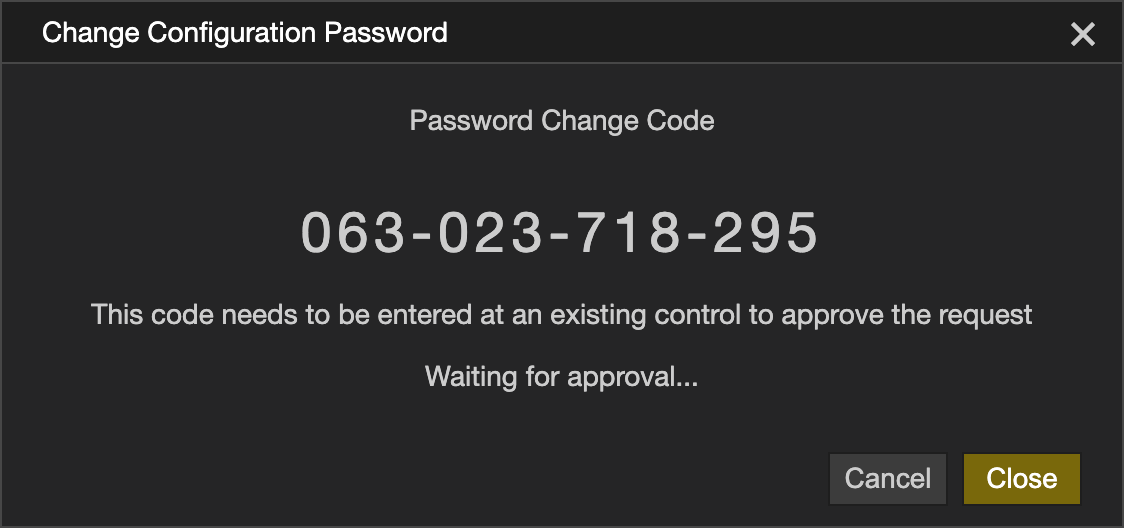
- Pass the code to the operator of the approving control, and leave the control program open
- Once approved - the password will now be changed - wait for the notification that shows the operation is complete
On the approving control
- Navigate to the Settings tab on the home bar
- Select the Devices tab
- Right-click the row of the control whose password is being changed and select Reset Control Password
- Type the code and press enter
- The control checks the code if it is valid the details of the control being updated are shown
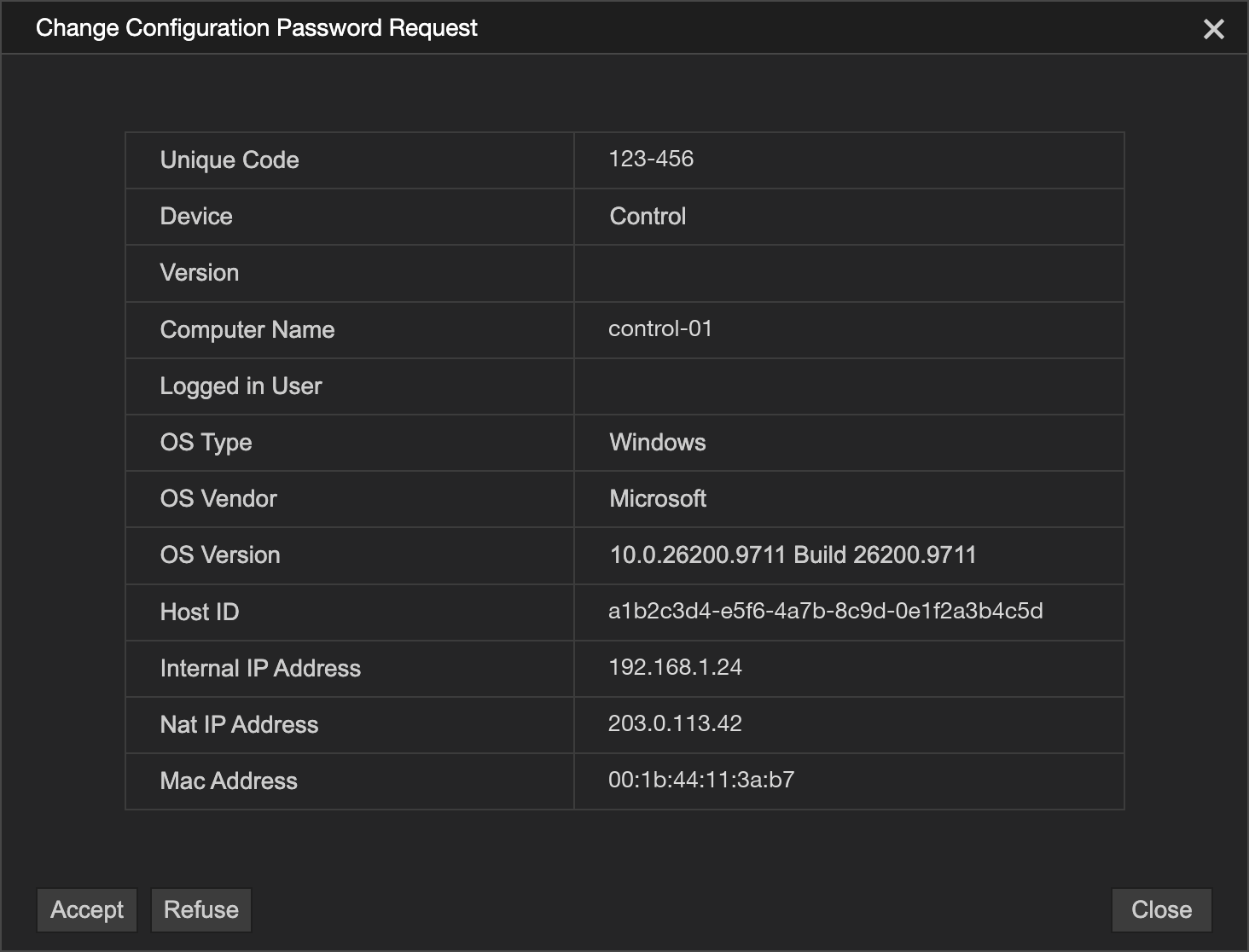
- Check the control's details and click Accept to accept the request
- Now select the configuration's KEK File and press Ok
- The password will now be changed