Overview
A task turns the work you repeat into a single reusable workflow.
Command, Script, File Transfer and Package actions do the work. Arguments and File / Folder Selection actions collect values from the operator when the task starts. Conditional Blocks switch which actions run, based on the result of the action before them.
Tokens such as <Temp>, <Package> and <WorkId> stand in for paths and values that are only known when the task runs, and are filled in automatically.
Tasks are created and edited in a no-code editor, so there is no scripting language to learn.
Every time a task is run, the details are recorded as a work item, whose results can be reviewed or exported.
Navigation
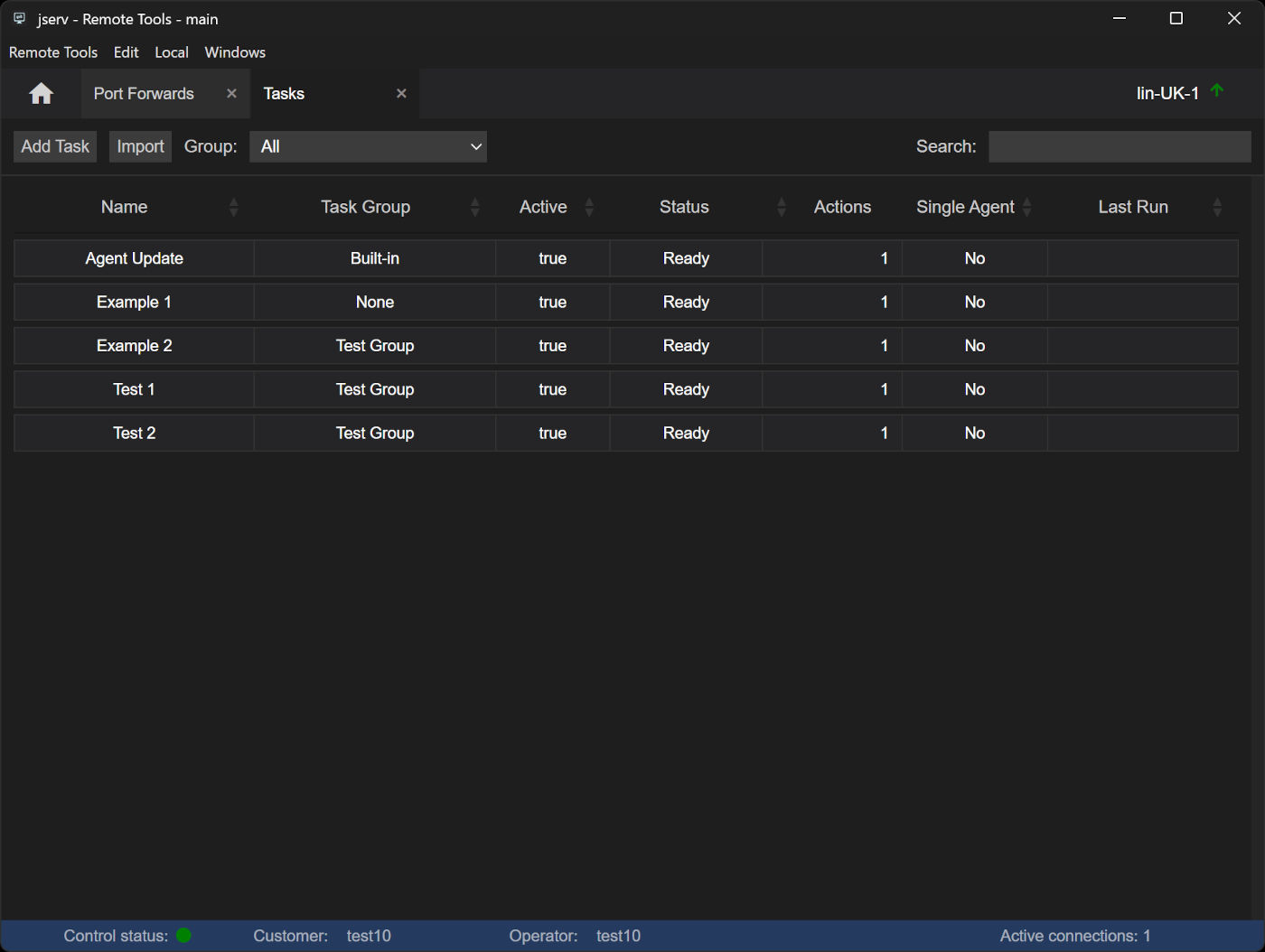
Tasks can be opened in two places:
| Function menu | Right-click an agent and select Tasks. Lists the tasks that apply to that agent, and is where tasks are run |
| Home menu | ProfessionalSelect Tasks. Lists global tasks, and agent tasks when Agent Tasks is ticked. Tasks are managed here but not run |
See Getting Around for the agent and Home menus.
Toolbar
| Add Task | Create a task - see Creating a task |
| Import | ProfessionalLoad a task from a .task file - see Export and import |
| Filters | Narrow the list by Active, Group and search. The Home view adds Agent Tasks, Helper Tasks, and Built in and User Defined filters |
The task list
| Name | The task's display name |
| Task Group | The group it belongs to |
| Active | Whether the task can be run |
| Status | Ready, or Active while it runs |
| Actions | How many actions the task has |
| Single Agent | Yes for an agent task, No for a global task |
| Last Run | When the task was last run |
Double-click a task to see the results of its runs - see Results.
Right-click menu
| Run | Run the task on this agent. Agent view only - see Running a task |
| View/Modify | Open the task. Shown as View if you can't change it - see View/modify task |
| Remove | Delete the task - see Removing a task |
| Export | ProfessionalSave the task as a .task file. Home view only |
Agent and global tasks
There are two kinds of task:
| Agent task | Created and managed from the Tasks function on an agent. It belongs only to that agent, so it has no editable filters |
| Global task | ProfessionalCreated and managed from Tasks in the Home menu. By default global tasks apply to all agents, but filters can restrict them to a set of agents |
The Tasks view in the Home menu lists global tasks, with search and group filters. Tick Agent Tasks to include agent tasks as well. Tasks are created, changed and exported there, but not run - run a task from an agent's Tasks function, or on many agents at once with a batch.
Creating a task
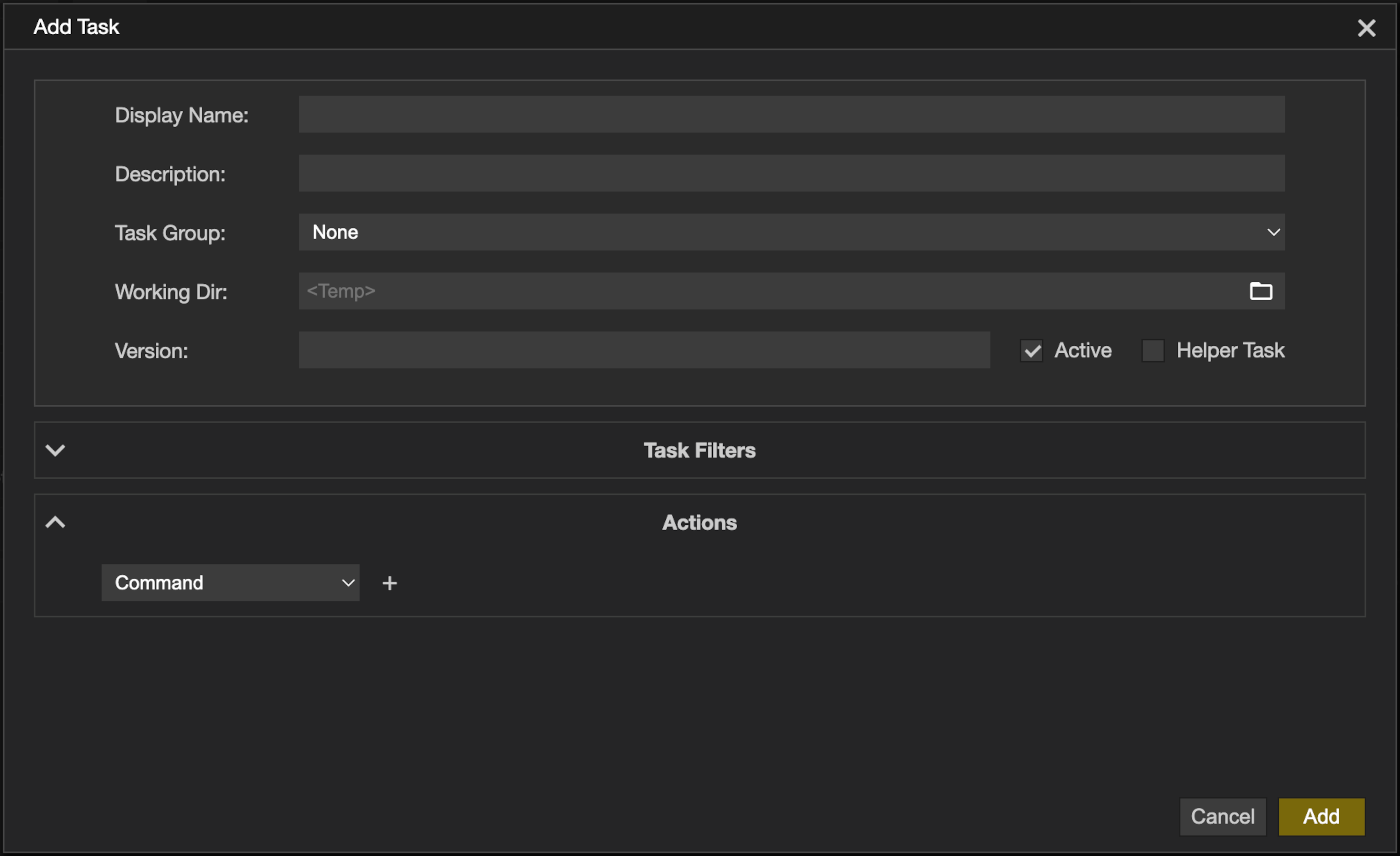
Click Add Task and fill in the task's details:
| Display Name | The name shown in the task list |
| Description | Optional notes about what the task does |
| Task Group | Groups related tasks together in the list - see Settings - Tasks |
| Working Dir | The control's working directory for the task. It is the path for local actions and can be accessed with <WorkingDir> |
| Version | A free-text version label for your own tracking |
| Active | Clear it to stop the task being run. Default: on |
| Helper Task | Makes the task runnable only from another task's Call Task action - see Helper tasks |
By default, actions run at the control use a temporary folder, <Temp>, which is deleted when the run ends. To keep files, set Working Dir to an existing folder on the control and save them there, or refer to it as <WorkingDir> in a File Transfer's local path. Add <WorkId> to keep each run's files apart, for example <WorkingDir>/<WorkId>.
Task Filters
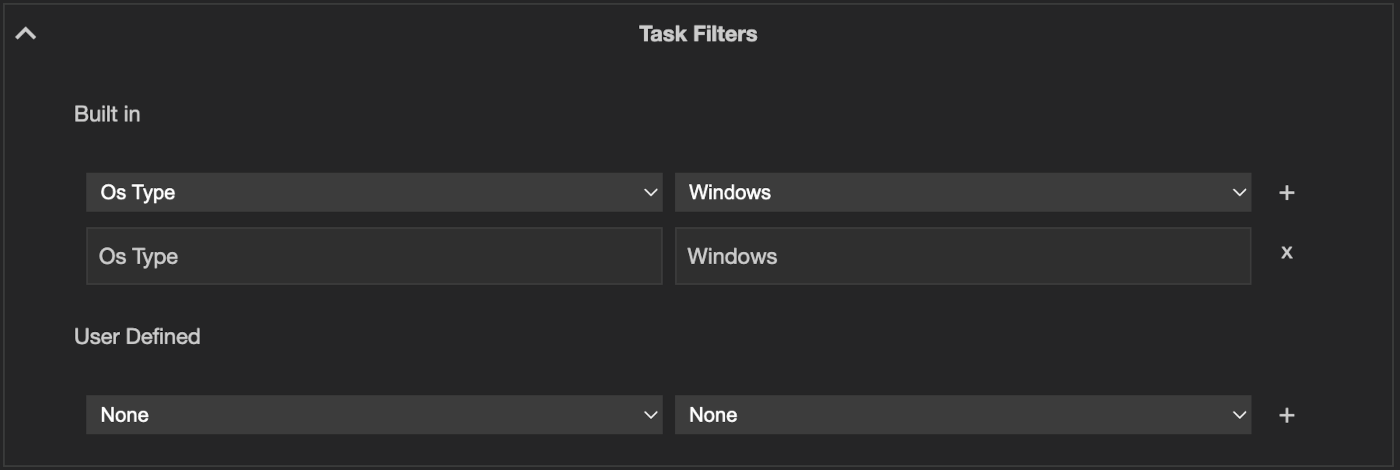
Task filters decide which agents a task applies to - where it is listed and where it can be run.
An agent task shows the UUID of the agent it belongs to, which can't be changed.
ProfessionalTo add a filter to a global task:
- Choose a property from the left-hand list - a Built in property, or one of your User Defined keys
- Choose the value it must match from the right-hand list
- Click + to add it to the list below
Repeat to add more filters, and remove one with the × on its row.
Actions
Choose an action type from the list and click + to add it. Actions run in the order they are listed. A task must have at least one action.
| Command | Runs a program with its arguments on the agent |
| Script | Sends a script to the agent and runs it |
| File Transfer | Copies files between the control and the agent |
| Package | Deploys a package to the agent |
| File / Folder Selection | Asks the operator to pick a file or folder when the task is run |
| Arguments | Declares values the operator is asked for when the task is run |
| Conditional Block | Added from an action with + Add Conditional Block. Chooses what runs next based on that action's result - see Conditional Blocks |
| Call Task | Runs a Helper Task in place of this action |
| Sleep | Waits a number of seconds before the next action |
Command
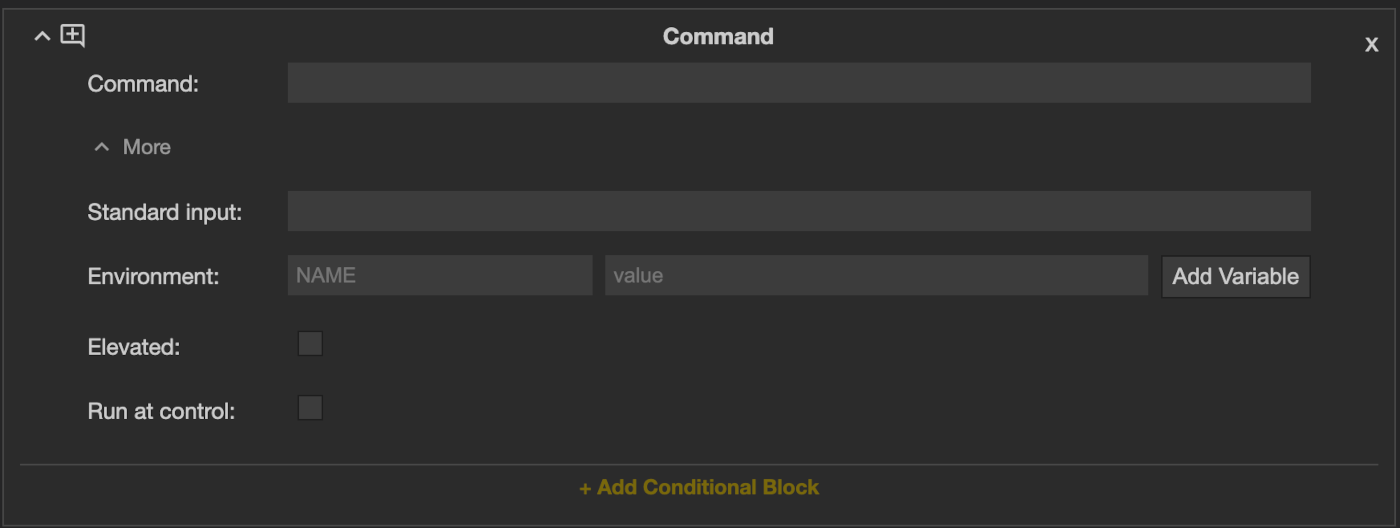
Runs a program directly, without a shell.
| Command | The program and its arguments, as you would type them in a terminal |
| Standard input | Optional text written to the program's input - the safe place for a Secret argument |
| Environment | Optional variables added to the program's environment - the safe place for a Secret argument |
| Elevated | Run with administrator or root privileges. Ticking it asks for your password - see Privilege Elevation |
| Run at control | ProfessionalRun on the control instead of the agent |
Script
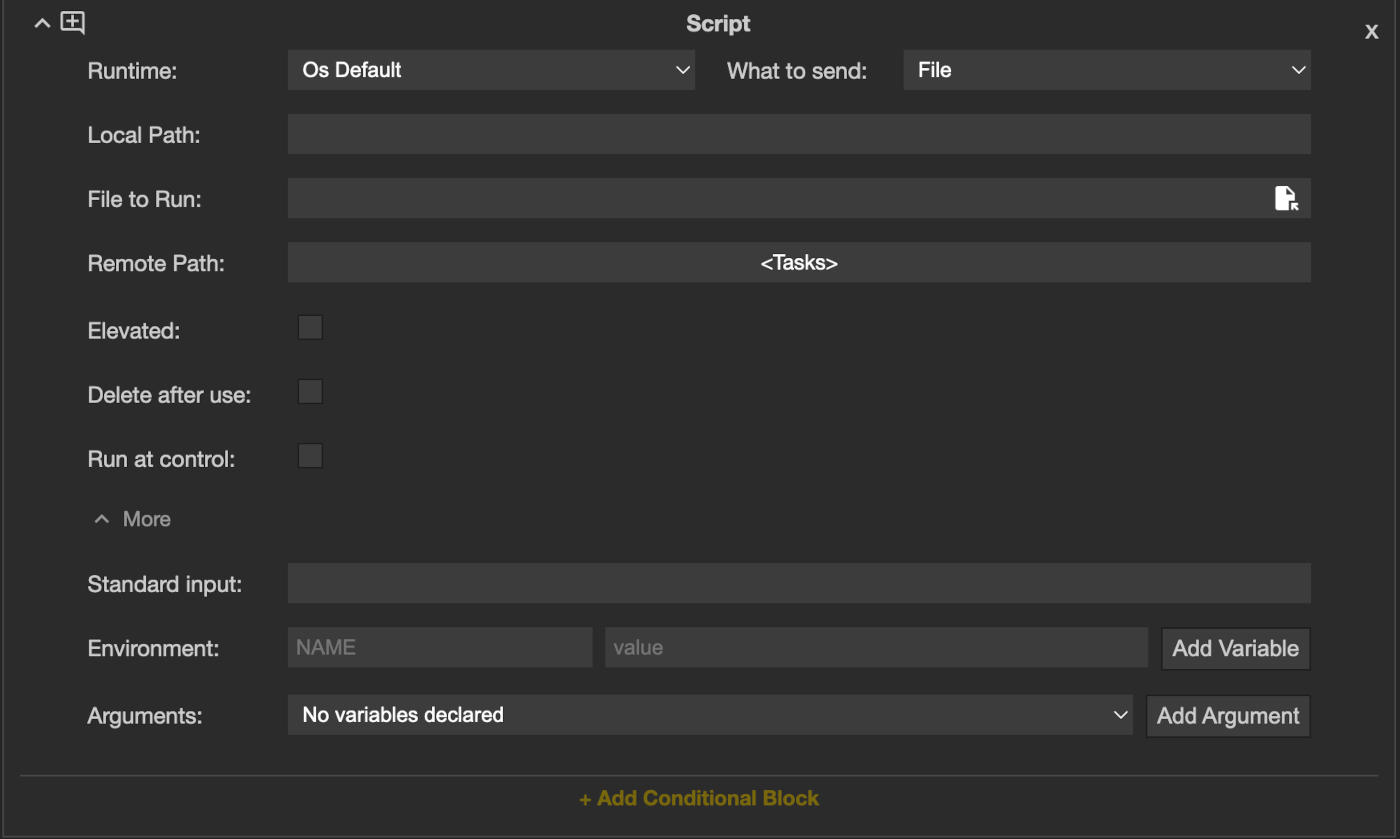
When the task is saved, the control keeps a copy of the script. When the task runs, the script is verified, sent to the agent, and verified again before it runs. A script set to Run at control is verified and run on the control.
| Runtime | The interpreter that runs the script. Os Default uses one already on the agent, chosen by the script's extension; a managed runtime supplies its own - see Settings - Tasks |
| What to send | A single File, or a Package - a zip of the script and everything it needs |
| Local Path, File to Run | Where the script is on the control, and which file to run |
| Remote Path | Always <Tasks> on the agent |
| Arguments | Values passed to the script. Each is either fixed text or a variable declared by an Arguments action |
| Standard input | Optional text written to the script's input - the safe place for a Secret argument |
| Environment | Optional variables added to the script's environment - the safe place for a Secret argument |
| Elevated | Run with administrator or root privileges. Ticking it asks for your password - see Privilege Elevation |
| Delete after use | Removes the script (or the .zip package) from the agent when the task finishes. By default it is kept, so it doesn't need to be re-sent when the task runs again |
| Run at control | ProfessionalRun on the control instead of the agent |
File Transfer
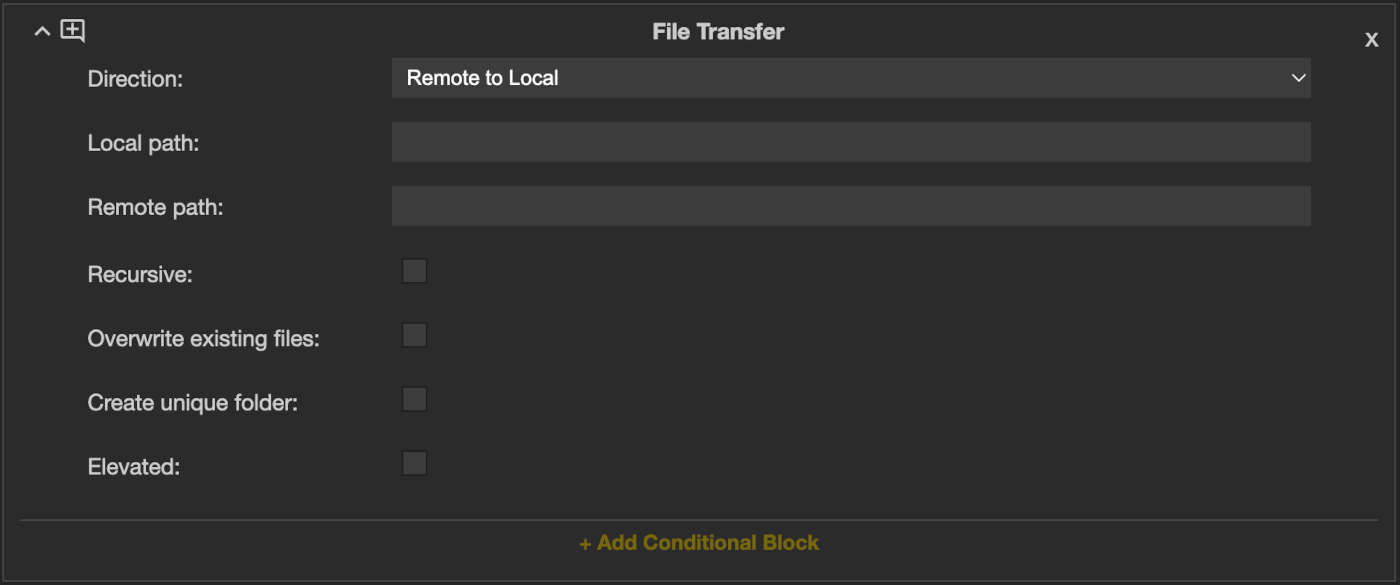
Copies files or folders between the control and the agent, in either direction. Transfers are compressed and delta-sync is used to make sure only the changes are sent. The source must exist, but the destination folder is created if it doesn't.
| Direction | Local to Remote sends to the agent; Remote to Local fetches from it |
| Local path, Remote path | The source and destination |
| Recursive | Include subfolders |
| Overwrite existing files | Replace files that already exist |
| Create unique folder | Save into a folder named after the work item, so repeated runs don't overwrite each other |
| Rename file | Give the file a new name at the destination. Single files only |
| Elevated | Read or write with administrator or root privileges on the agent. Ticking it asks for your password - see Privilege Elevation |
Package
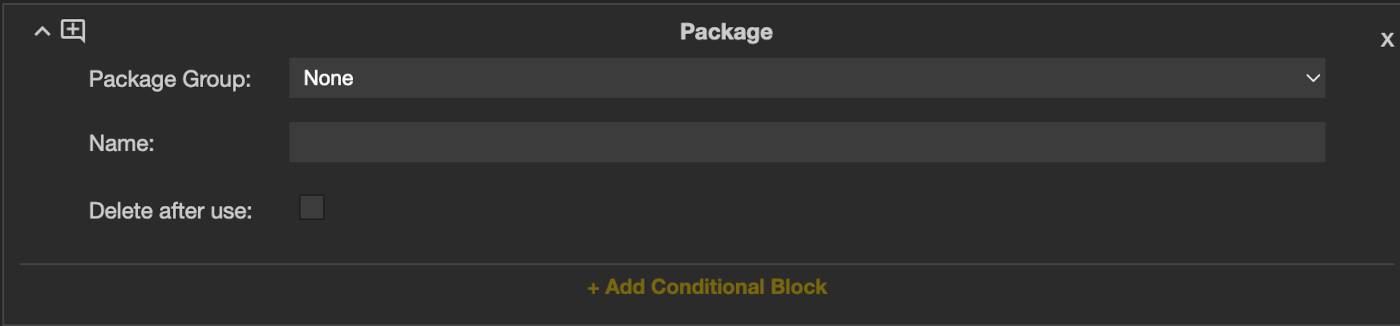
Sends a pre-saved package (.zip) to the agent and unpacks it, ready for later actions to use through the <Package> token. The package is verified before sending and again at the agent before it is unpacked. The unpacked folder is removed when the task ends. See Settings - Tasks for details of how to add packages.
| Package Group, Name | The package to deploy - see Settings - Tasks |
| Delete after use | Removes the package's zip from the agent when the task finishes. By default it is kept, so it doesn't need to be re-sent when the task runs again |
File / Folder Selection
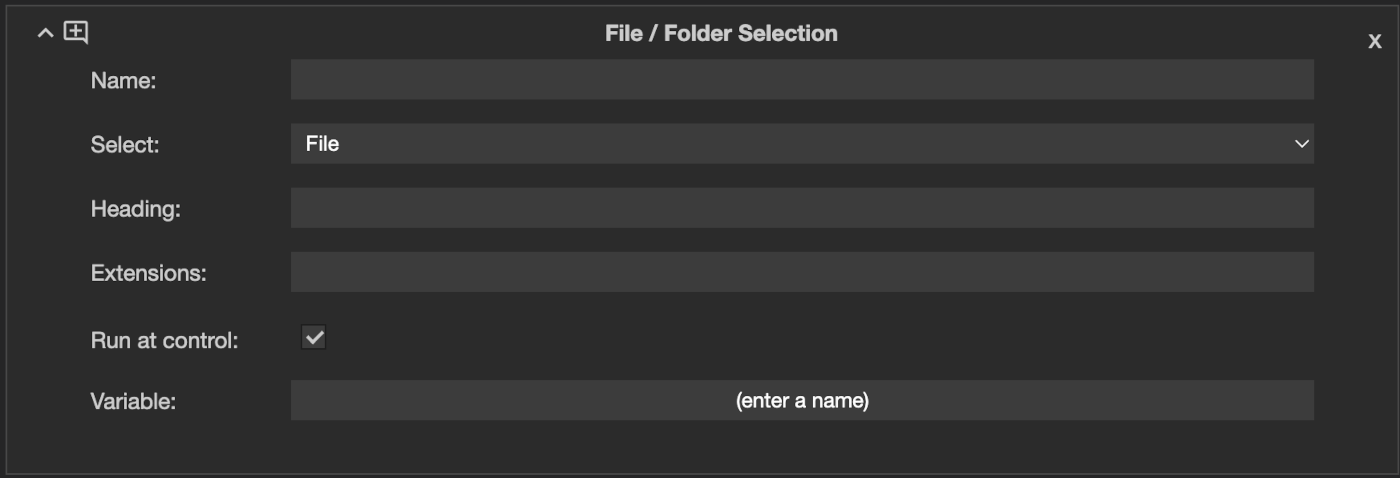
Asks the operator to choose a file or folder on the control when the task is run. Give it a Name, whether to Select a file or a folder, a Heading shown above the picker, and optionally the Extensions to offer. The choice can then be used by later actions through its Variable.
Arguments and path tokens
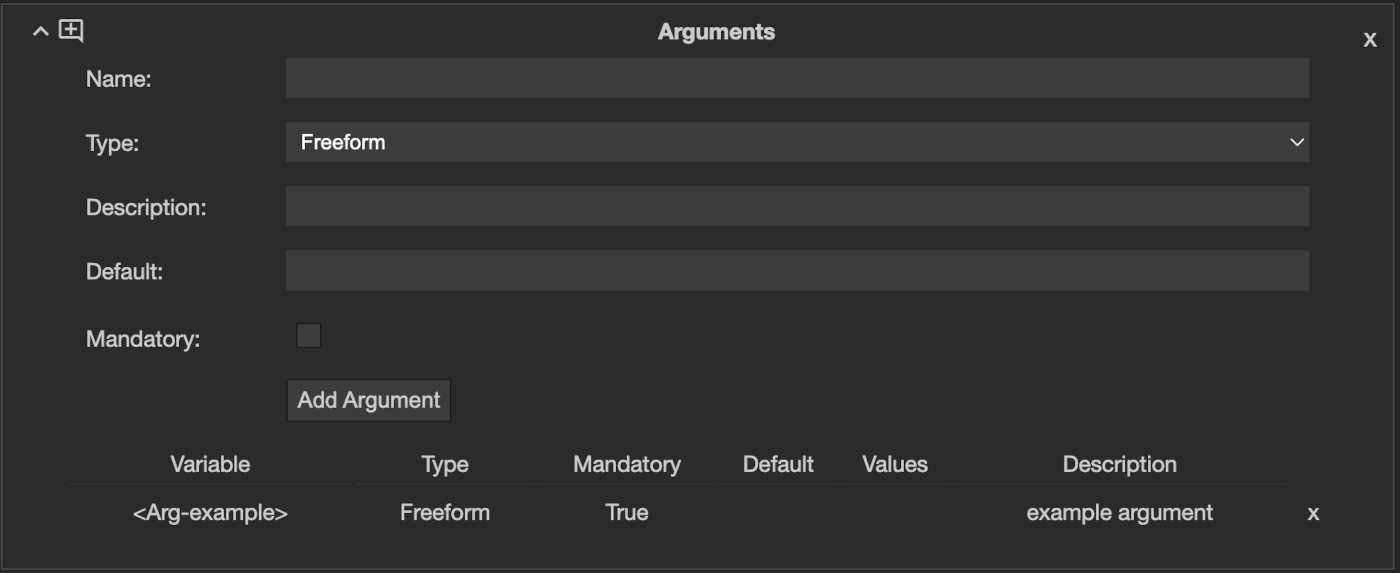
An Arguments action declares the values a task needs from the operator. Each one has a name, a type, a description shown as the prompt, and whether it is mandatory. It can then be used in later actions as <Arg-Name>.
| Freeform | The operator types a value. Can have a default |
| Hardcoded | A fixed value, not asked for |
| Secret | The operator types a value that is not stored. Always mandatory, and has no default |
| Selection | The operator picks one of a list of values. Always mandatory |
📌 A Secret should not be passed as a command-line argument, because command lines can be seen by anyone on the agent. Pass it through Standard input or an Environment variable instead.
Paths can also use these tokens:
| <Tasks> | The agent's tasks folder |
| <Temp> | A scratch folder for this run |
| <Package> | The folder this task's Package action unpacked to |
| <WorkingDir> | The control's working directory for the task |
| <WorkId> | The work item UUID for the run. Use it to create unique file names, e.g. <WorkingDir>/report-<WorkId>.csv |
Conditional Blocks
A conditional block uses an action's result to decide what action runs next. Blocks can be nested, so conditions can be chained.
Click + Add Conditional Block at the bottom of an action to add a block. Then add one or more Cases - each sets how the result is checked and the actions to run if it matches. Cases are checked from top to bottom.
| Exit Code equals, Exit Code not equals | Compare the action's exit code. File Transfer and Package use 0 for success |
| Output contains, Output does not contain | Search the output. Command and Script only |
| Any Failure | Matches whenever the action failed |
| Default | Matches when no other case did |
Continue on failure lets the task carry on when the action failed.
Sleep
Waits the given number of Seconds before moving on to the next action.
Helper tasks
A task marked Helper Task cannot be run directly. It is run by another task's Call Task action, and uses the answers given to that task. This lets a common set of actions be shared between tasks and kept in one place. A Helper Task cannot contain a File / Folder Selection.
Running a task
- Open the Tasks function on a connected agent
- Right-click the task and select Run
- If the task asks for arguments or a file selection, fill them in when prompted
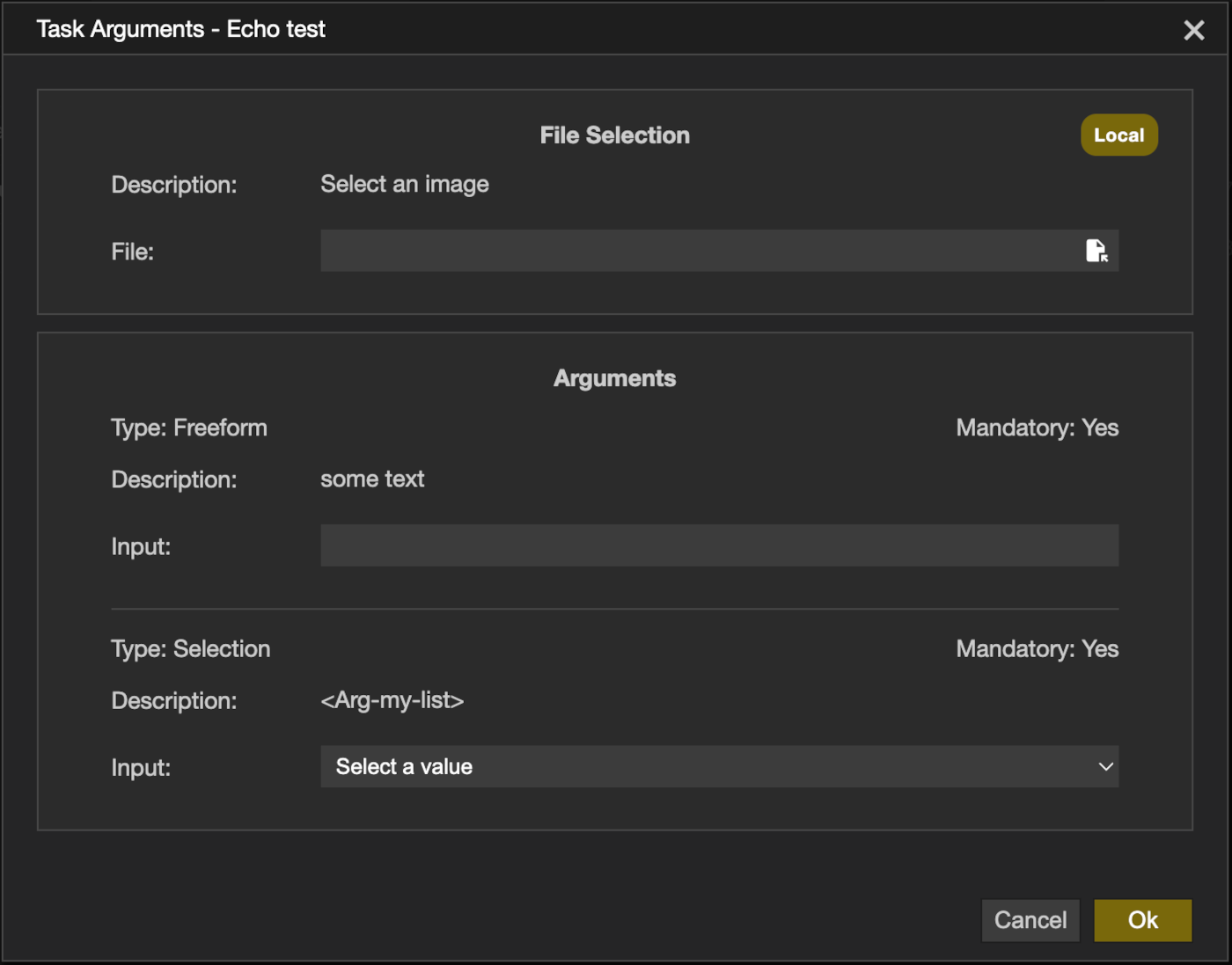
The task's status changes to Active while it runs.
Results
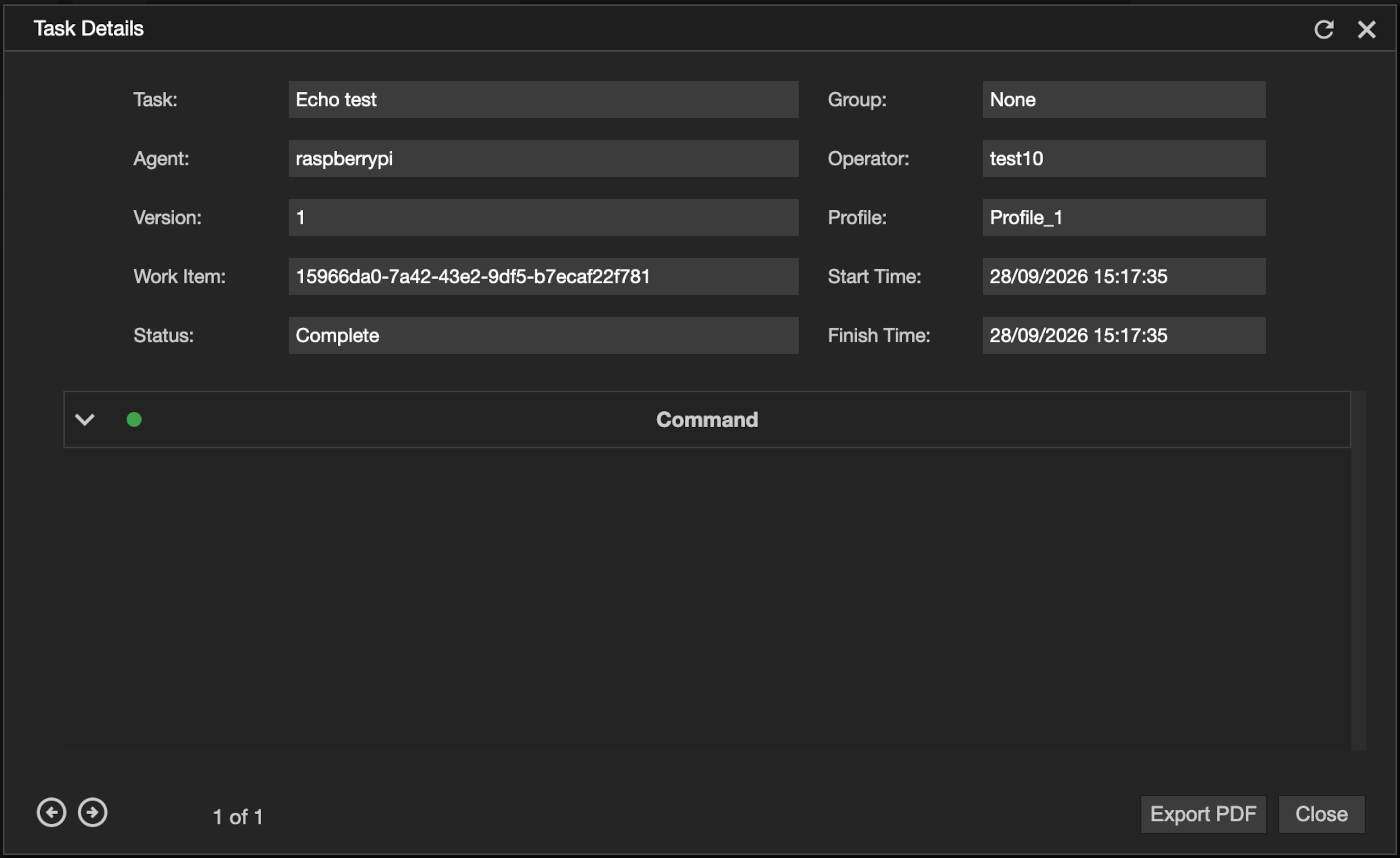
Double-click a task to see its work items. Each action's details and output are listed in the order they ran, and you can move between the results of separate runs.
| Stop | Stop a run that is still in progress |
| Export PDF | Save the results as a PDF |
View/modify task
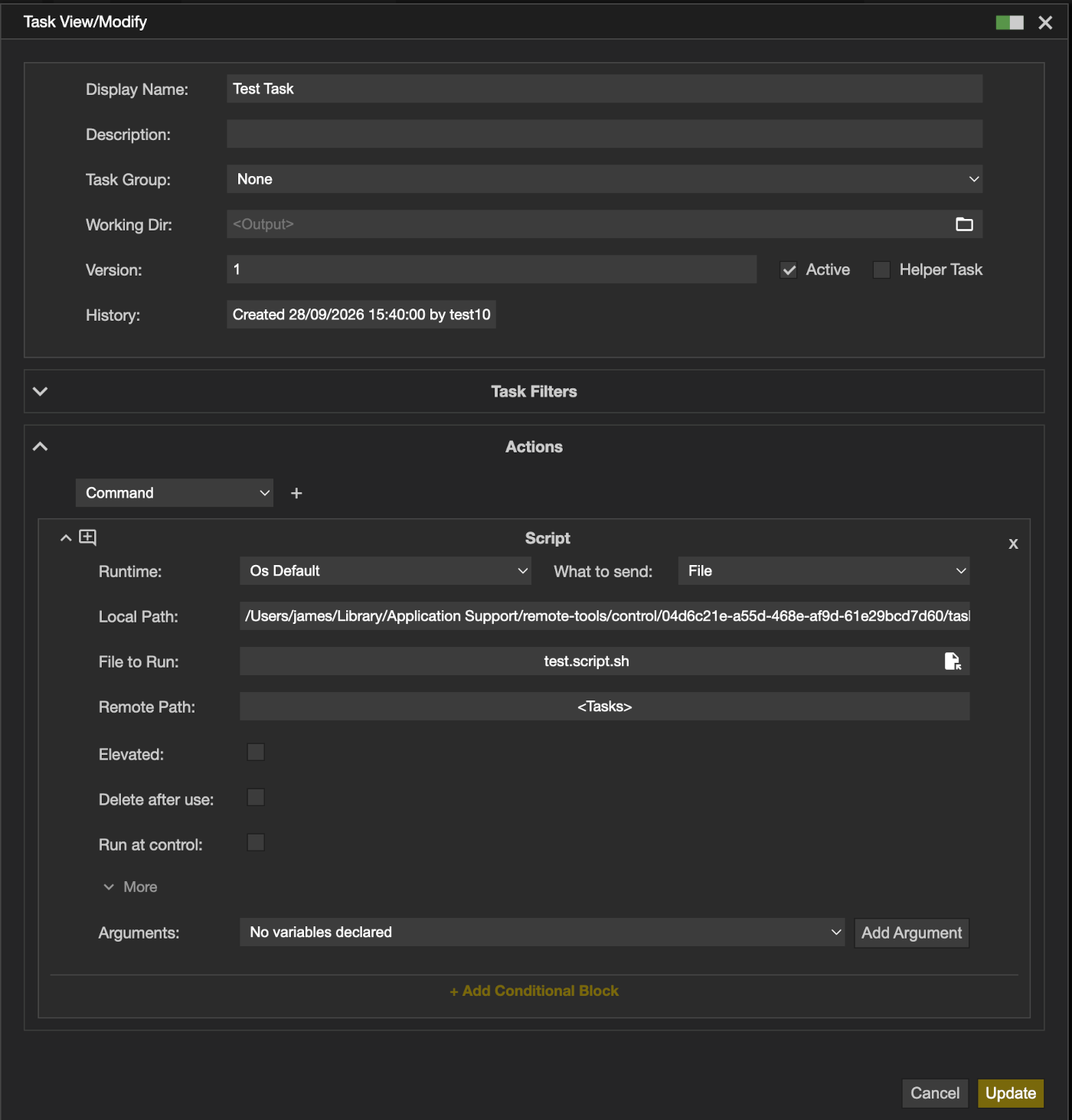
- Right-click a task and select View/Modify or View to open the task details
- To make changes, toggle the slider at the top right on
- Once the changes are completed, click Update to save them, or Cancel to discard them
Removing a task
- Right-click a task and select Remove
- On the confirmation dialog, click Remove to confirm
📌 Removing a task also deletes all of its work item results. To keep the history but stop the task being run, modify the task and clear Active.
Export and import
ProfessionalA task can be exported from the Home view to a .task file, and imported from one. Importing opens the task in the create dialog, so it can be checked and saved like a new task. Anything it refers to that is not on this control - a package or runtime, for example - is listed so it can be chosen again.
Permissions
📌 The options available to you depend on the agent's settings and your operator profile.
| Permission | Set in | Allows |
|---|---|---|
| Tasks | Agent settings | Running tasks on this agent |
| Allow Tasks | Operator profile | Opening Tasks |
| Run Tasks | Operator profile | Run |
| View Task | Operator profile | View - seeing a task's details |
| View Work Items | Operator profile | Double-clicking a task to see its results |
| Create/Edit Tasks | Operator profile | Add Task, View/Modify, Remove and Import |
| Allow Privilege Elevation | Operator profile | Ticking Elevated on an action - see Privilege Elevation |
Running a task across many agents is covered by the batch permissions - see Batch Tasks. See Configuration Options for all the settings.