Overview
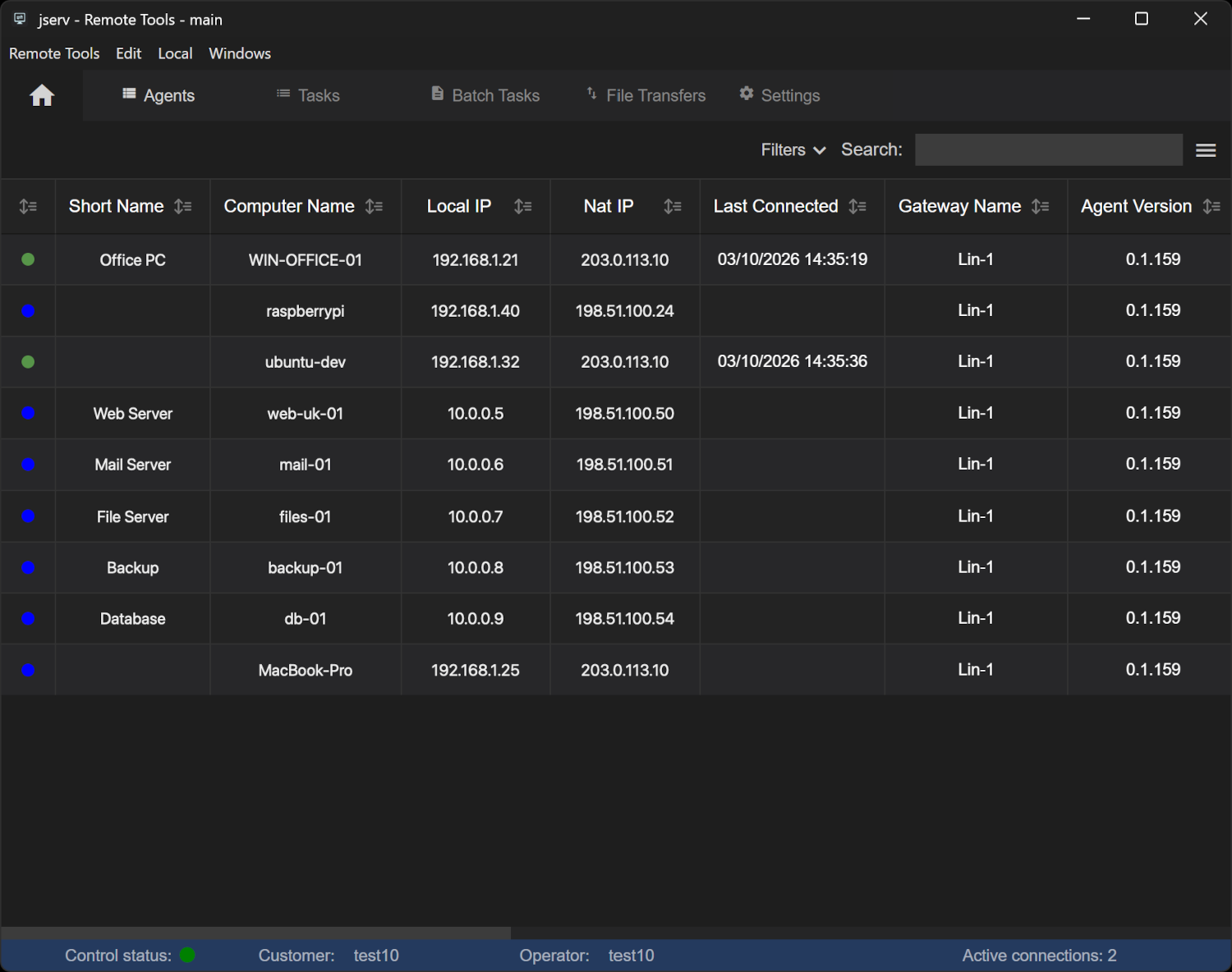
This page describes how to navigate around the Control program. The image above shows the main window, with the Agents list and the details of each agent.
The menu bar
| Remote Tools | Loading and leaving a configuration, the Configuration menu, and Quit - see below |
| Edit | Undo, redo, cut, copy, paste and select all |
| Local | Log Viewer opens the Log Viewer on files on this machine |
| Windows | Full screen |
The Remote Tools menu contains:
| Load Configuration | Loads a configuration, entering its password |
| Load Operator | Sign in as a different operator in the configuration that is loaded |
| Log Out | Close the configuration. Any batches started by the operator stop |
| Configuration | Opens the Configuration menu - see below |
| Quit | Close the Control |
Home menu

The Home menu is the Control's main navigation, for everything that is not tied to one agent: the agent list, tasks, batch tasks, file transfers and settings.
| Agents | The list of agents - see below |
| Tasks | ProfessionalEvery task in the configuration - see Tasks |
| Batch Tasks | ProfessionalTasks run across many agents - see Batch Tasks |
| File Transfers | Transfers in progress and recently finished - see File Transfer |
| Settings | Configuration details, devices, downloads and task settings - see Settings |
Agents list
The Agents list shows every agent enrolled in the configuration and whether it is connected. Right-click the column headings for Column Display, to choose which columns are shown, and Toggle Column Search, to search within a column.
Function menu
Right-click an agent to open its Function menu.
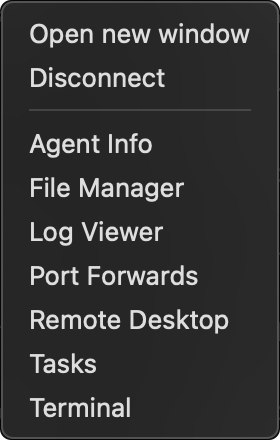
| Connect | Connect to the agent. Cancel stops a connection that is still being made |
| Disconnect | Close the connection and every function open on it |
| Open new window | ProfessionalWork with the agent in a window of its own |
| Enter account credentials… | Shown when the agent needs you to supply an account to work as - see Configuration Options |
| Agent Info, File Manager, Log Viewer, Port Forwards, Remote Desktop, Tasks, Terminal | Open that function on the agent. Only the functions your profile and the agent allow are offered |
Agent menu

The Agent menu contains each of the functions that you have open on an agent. The control automatically switches to it when you open a function from the agent list's Function menu, or when you click on an agent in the list.
Each open function appears as a tab in the menu. Click a tab to switch to that function, or its × to close it.
On the right side of the menu is the agent's name - right-clicking on this will open the Function menu to allow you to open another function. The arrow beside the name shows how you are connected - green for a direct connection, blue when the connection goes through a relay server.
Clicking the home icon on the left will return you to the Home menu.
Some functions have a slider that toggles working as System or root. See Privilege Elevation.
Configuration menu
Provides options that allow configurations to be updated. Select Configuration from the Remote Tools.
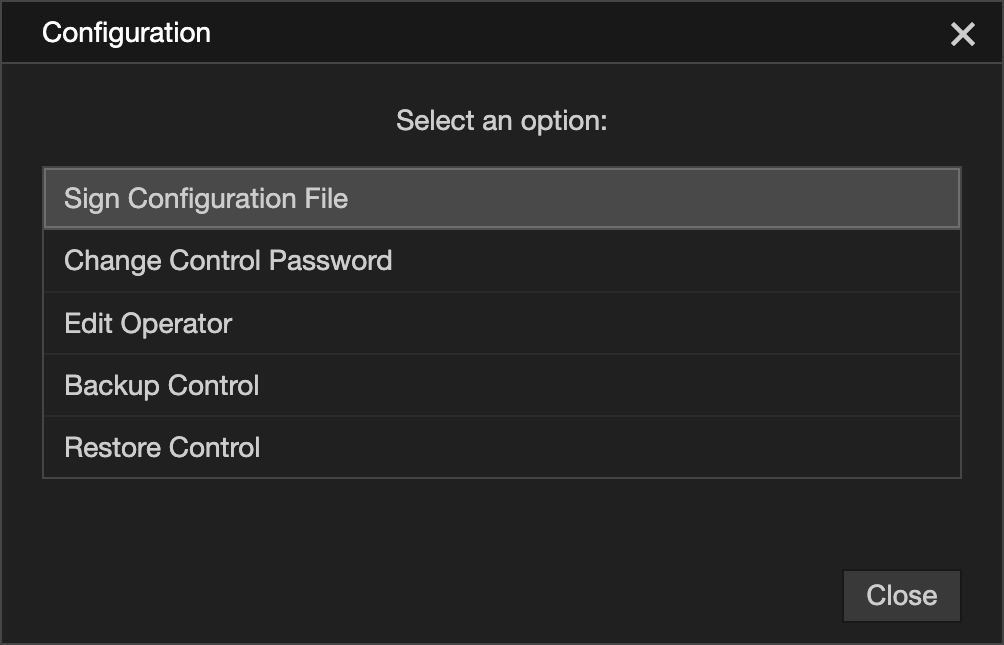
| Control not enrolled | Enrol Control - see Enrolment |
| No configuration loaded |
|
| Configuration loaded |
|
Notifications
Messages from the Control appear in the bottom right corner of the window. They disappear automatically after 30 seconds, or can be closed straight away with their ×. The colour shows the kind of message:
- Green - success
- Blue - information
- Amber - warning
- Red - error
Some prompt for a response and have a clickable link.
Status bar
The bar along the bottom of the window. This showls the controls status, the name of the configuration and operator that are loaded and the number of active connections.